Walkthroughs
Step-by-step guides grouped by topic. Brand new to Org Loom? Start with Connecting a Salesforce org. Already connected? Use our Canvas quick start to get started using the canvas. Looking for a specific feature? Expand a section and choose its walkthrough.
Getting started 4 Sign up, connect Salesforce, find the canvas, invite your team.
-
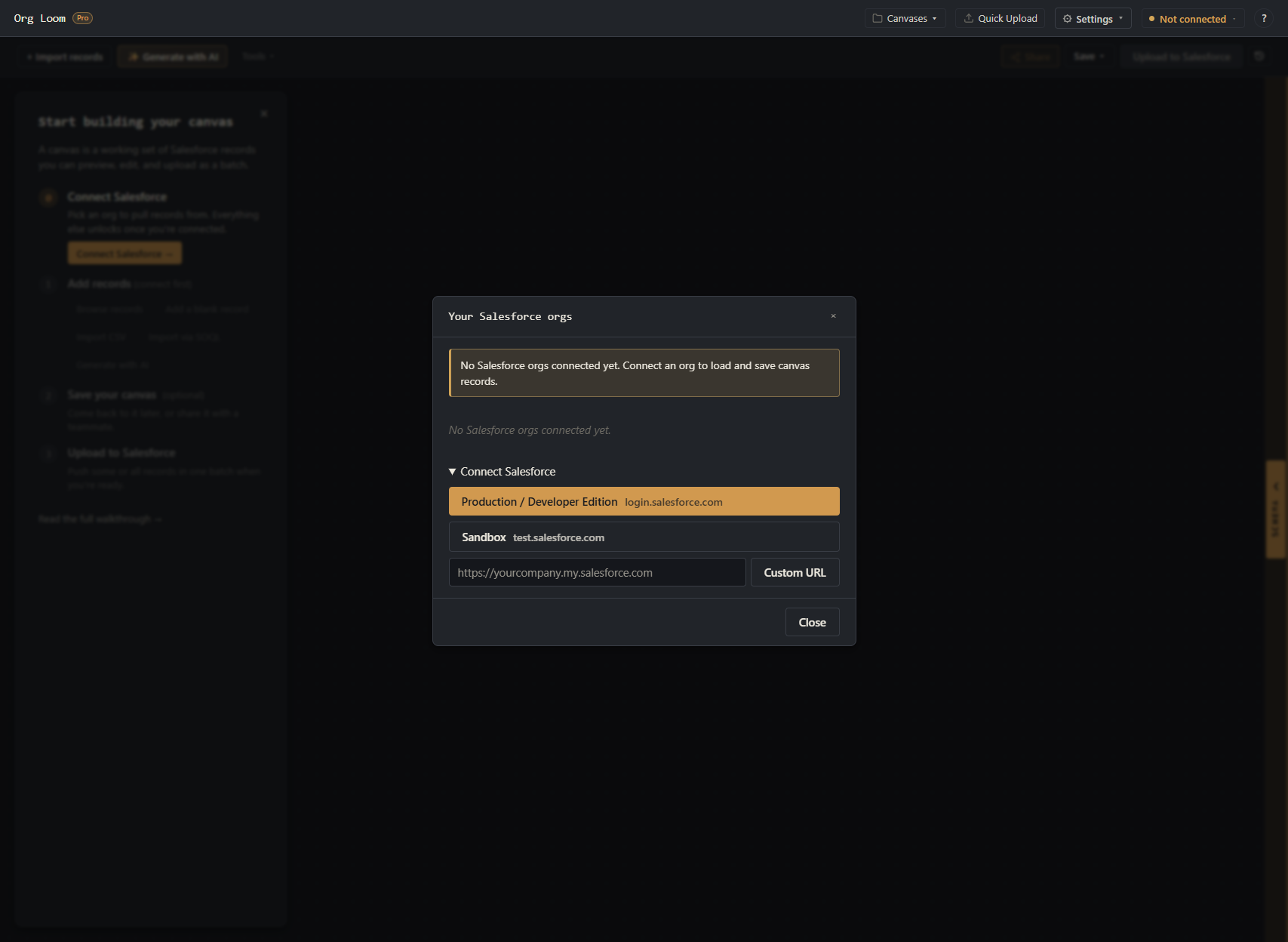
Connect a Salesforce org
Install the managed package, authorize a Salesforce user, and complete the required org setup.
-
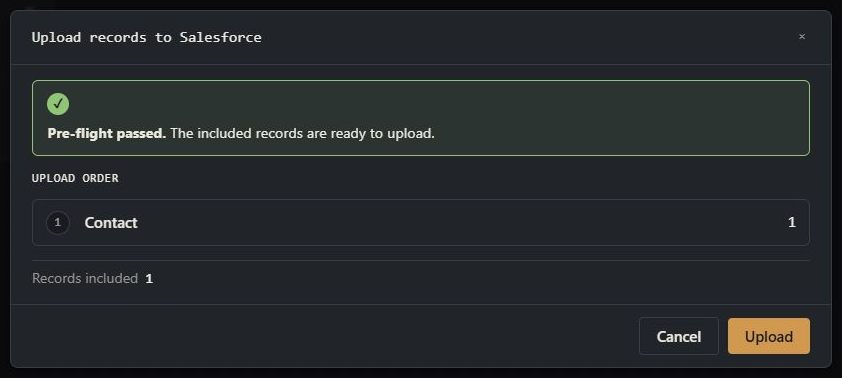
Canvas quick start
Add any available record type to the canvas, review it, and upload it to your org.
-

Invite teammates and join a workspace
Create or redeem an invitation, complete approval when required, and understand workspace membership.
-
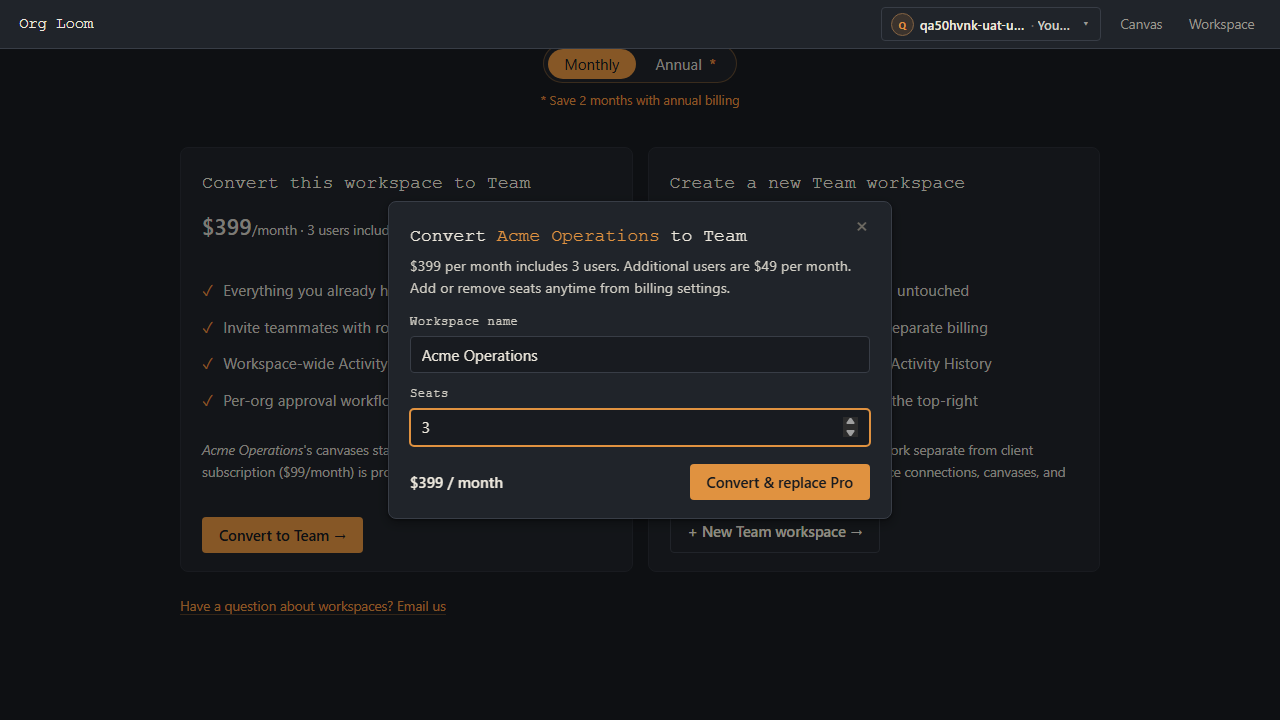
Move a Pro workspace to Team
Convert a Pro workspace in place or create a separate Team workspace.
Building canvases 5 Get records onto the canvas: by hand, from a query, from a CSV, or from a prompt.
-
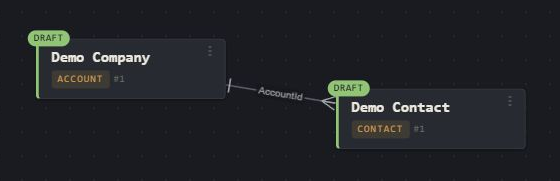
Build and upload a canvas
Create an Account and Contact, link them on the canvas, and upload them together.
-
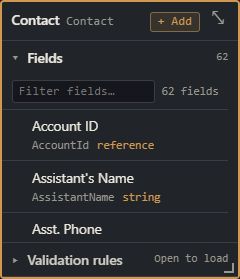
Explore objects, fields, and relationships
Navigate Salesforce schema, inspect fields, and add a record from the Schema explorer.
-
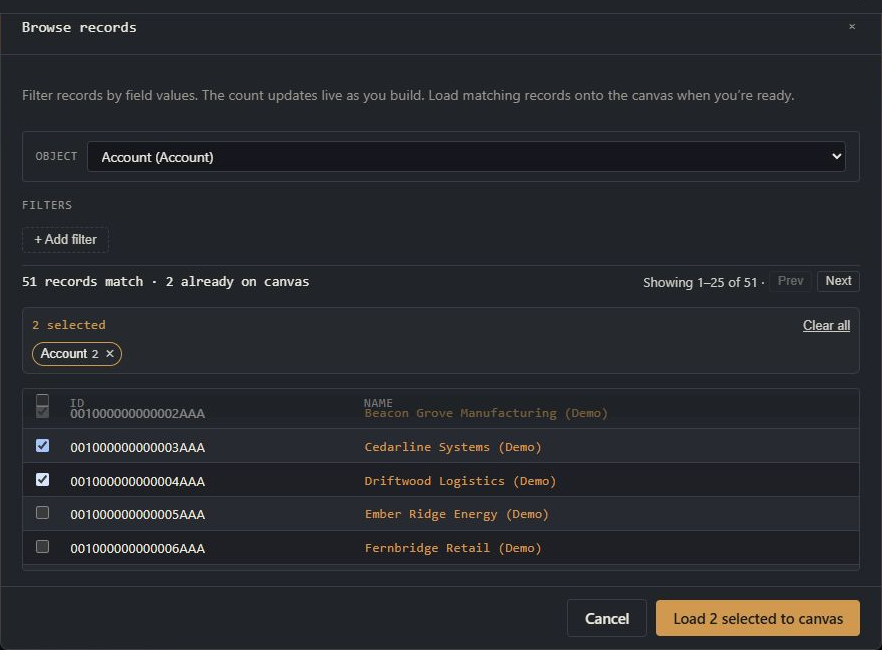
Browse Salesforce records
Choose an object, filter live Salesforce data, and load selected records onto the canvas.
-
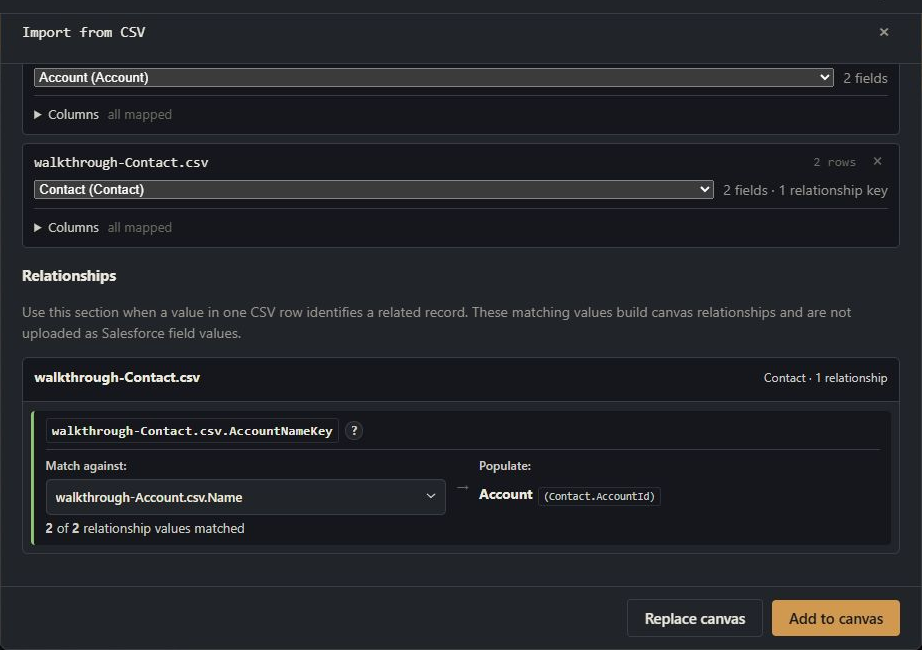
Import CSV records onto the canvas
Map CSV columns to Salesforce fields, link related rows, and review everything before upload.
-
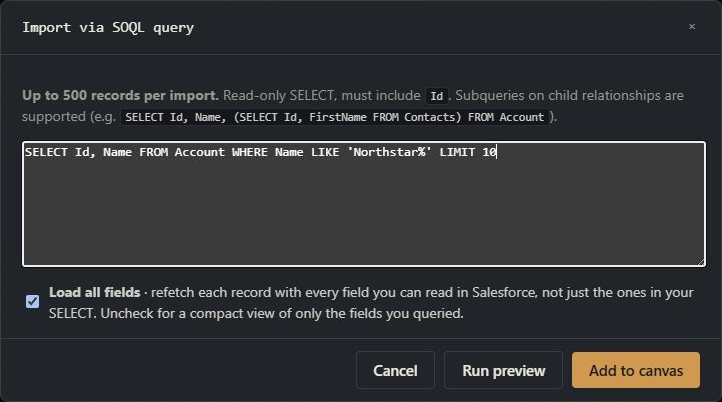
Import Salesforce records with SOQL
Preview a SELECT query and load the returned Salesforce records onto the canvas.
Working with records on the canvas 8 Edit, fill, bulk-modify, and script-transform the records you've staged.
-
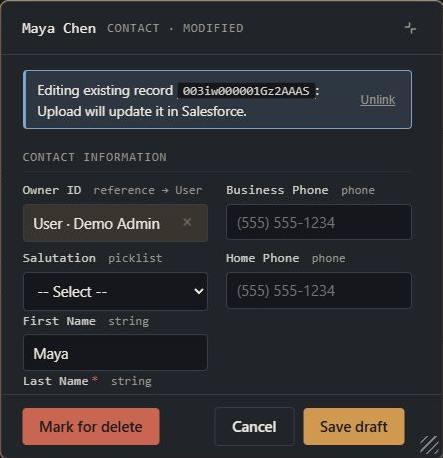
Edit existing Salesforce records
Load a record, stage field changes on the canvas, and upload them when ready.
-
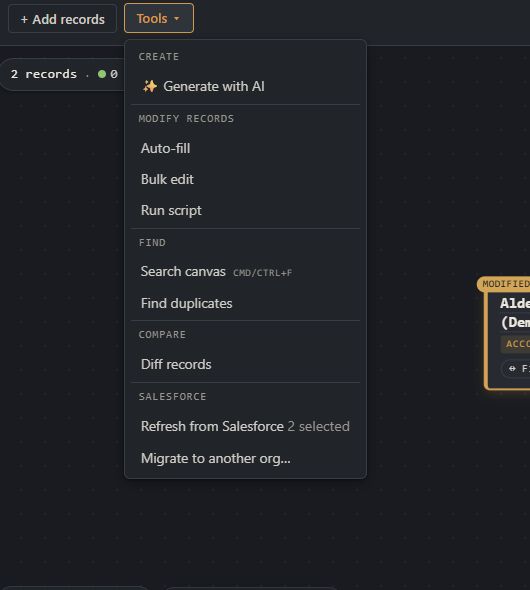
Refresh records from Salesforce
Reload current Salesforce values and decide how to handle local edits or missing records.
-
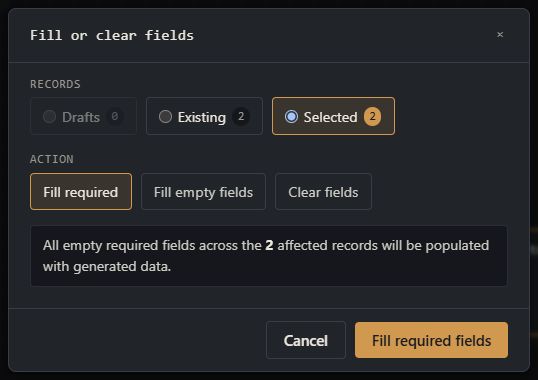
Fill or clear canvas records
Fill required or empty fields, clear selected values, and review or undo the canvas changes.
-
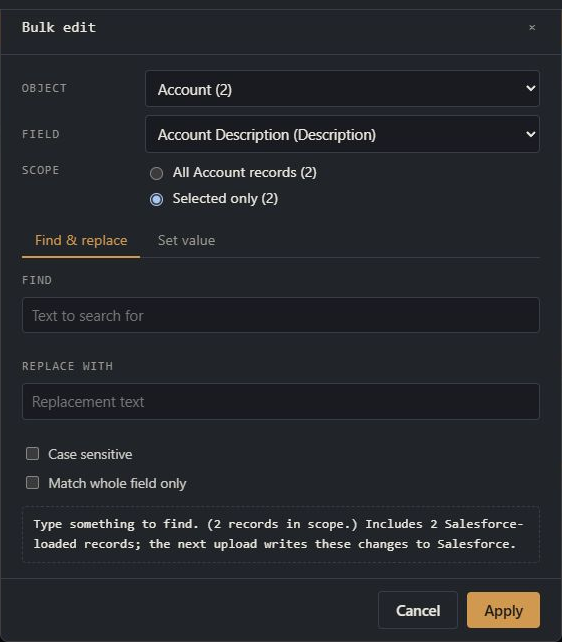
Bulk edit canvas records
Set one value across records or find and replace text in a selected field.
-
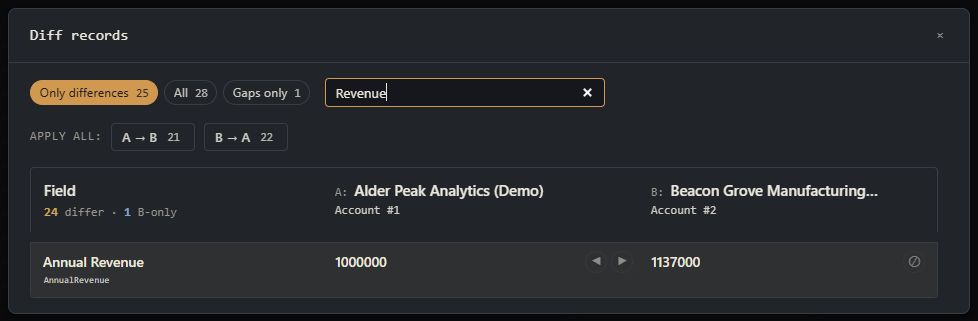
Compare two records
Compare two records of the same object and copy selected values between them.
-
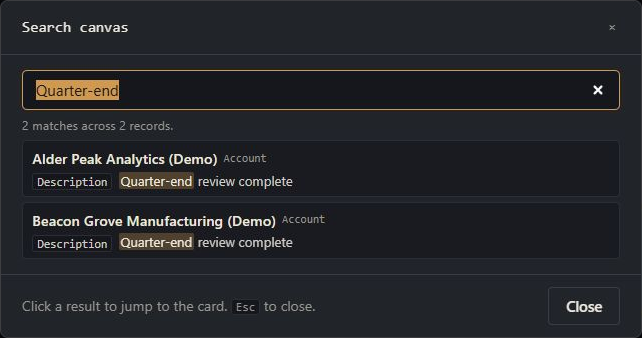
Find records on a canvas
Search visible card labels and field values, then move directly to a result.
-
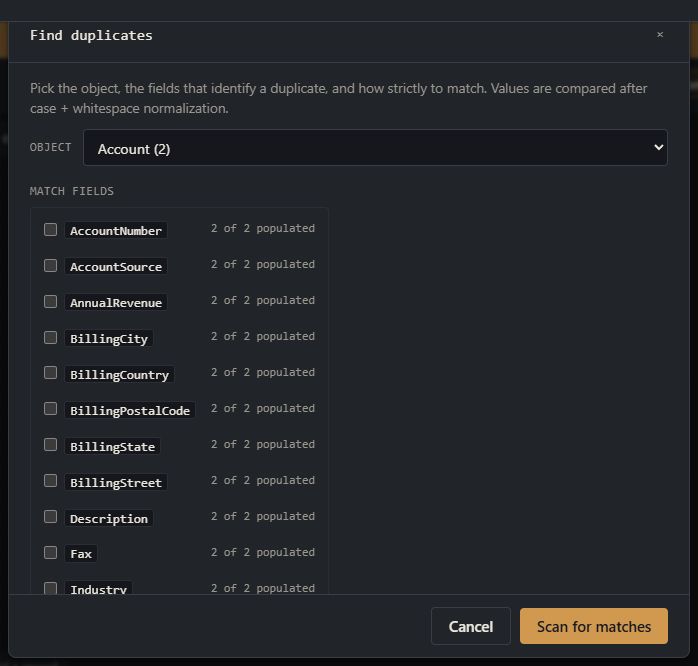
Find duplicate records
Choose match fields, review duplicate groups, and remove the records you do not want.
-
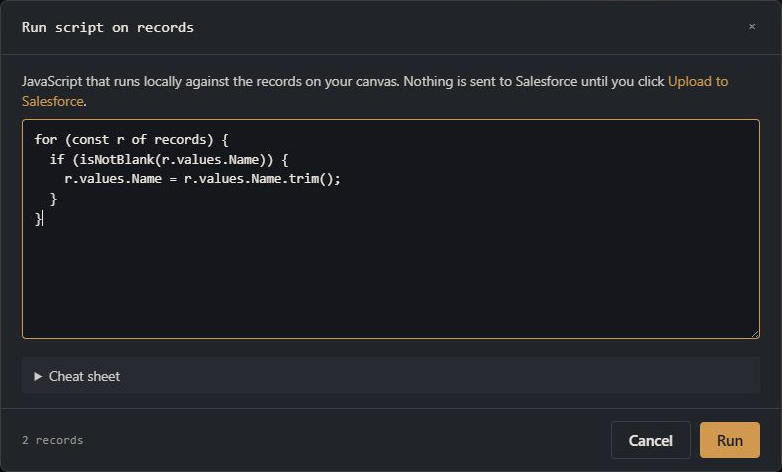
Transform canvas records with a script
Run a reviewed transformation across canvas records, then inspect or undo the result.
AI features 3 Generate draft records with AI, manage usage and credits, or connect an external AI client.
-
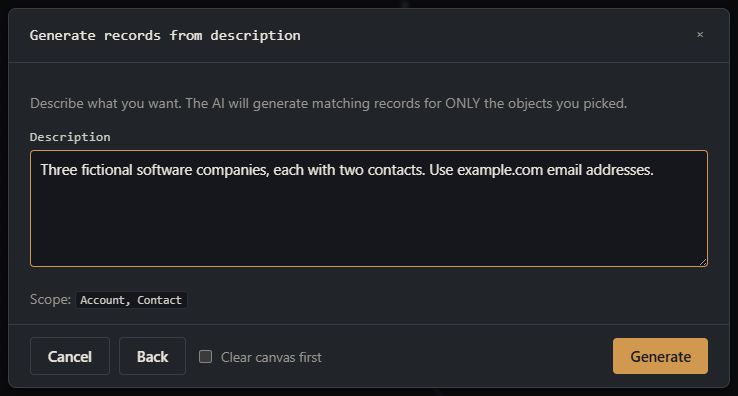
Generate draft records with AI
Describe a dataset, review the proposal, and add new drafts to the canvas without changing Salesforce.
-

Manage AI usage and credits
Review the workspace allowance, understand usage, and add credits when needed.
-
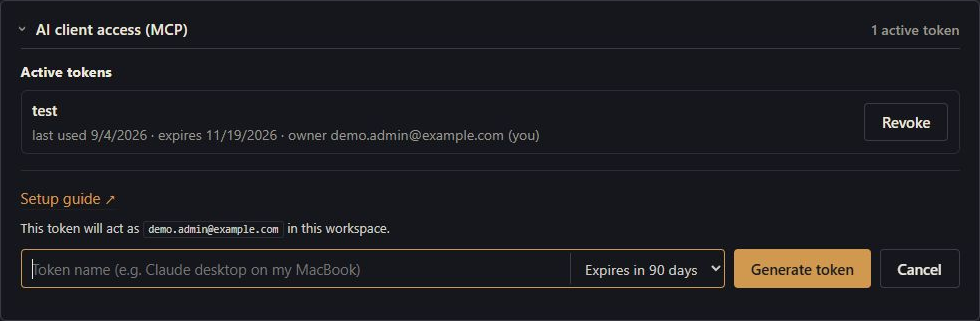
Connect an AI client
Issue a workspace token, connect a supported AI client, and review proposed canvas changes.
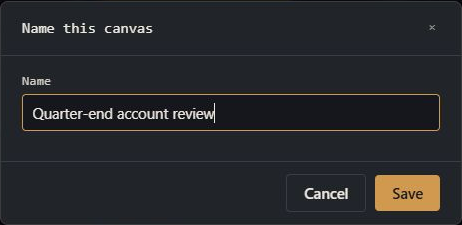
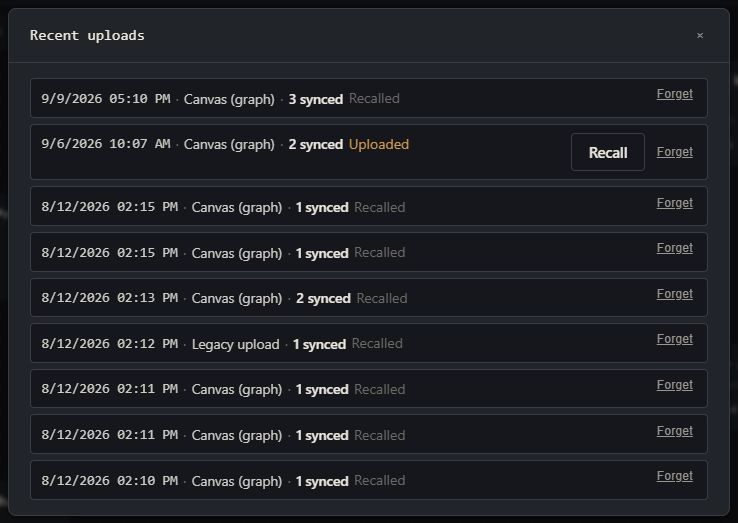
Saving & uploading 2 Save a canvas for later, upload records to Salesforce, and review or recall a previous upload.
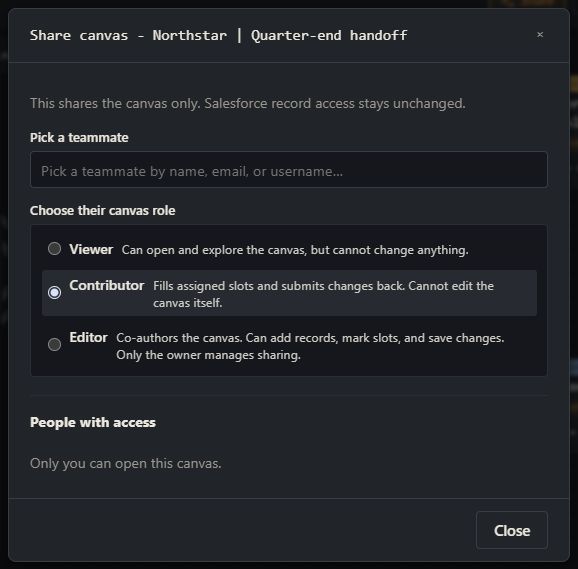
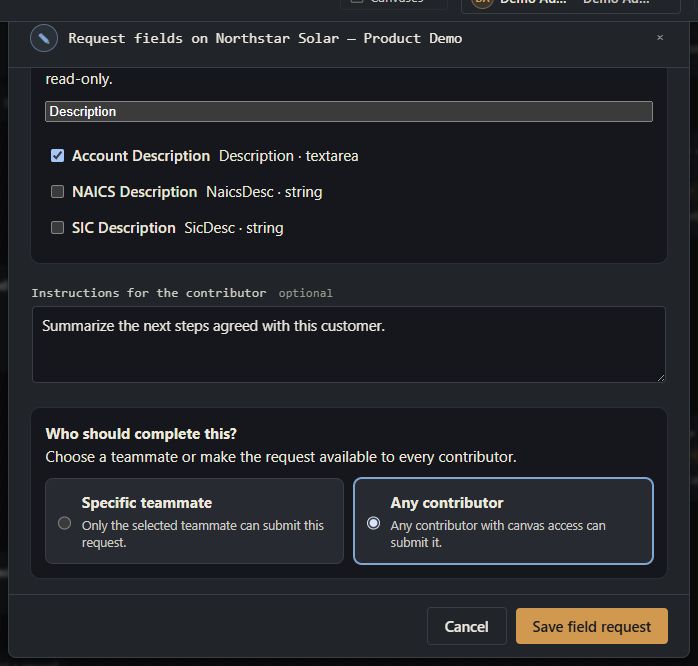
Collaboration 2 Share canvases, co-edit, and collect teammate input.
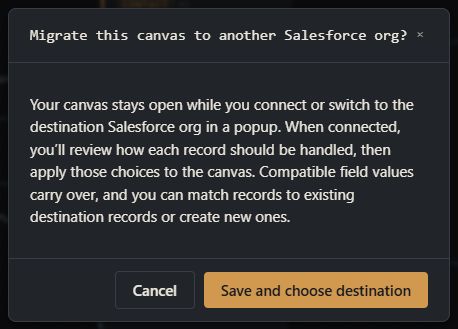
Multi-org workflows 1 Hold connections to several Salesforce orgs from one Org Loom account; move data between them.
Admin & compliance 3 Running a Team workspace, controlling which Salesforce orgs members may connect, and reading Activity History.
-

Manage a Team workspace
Manage members, permissions, settings, invitations, billing, AI access, and activity.
-

Choose which Salesforce orgs members can connect
Allow every Salesforce org or restrict the workspace to administrator-listed orgs using Current My Domain URLs.
-
Review Activity History
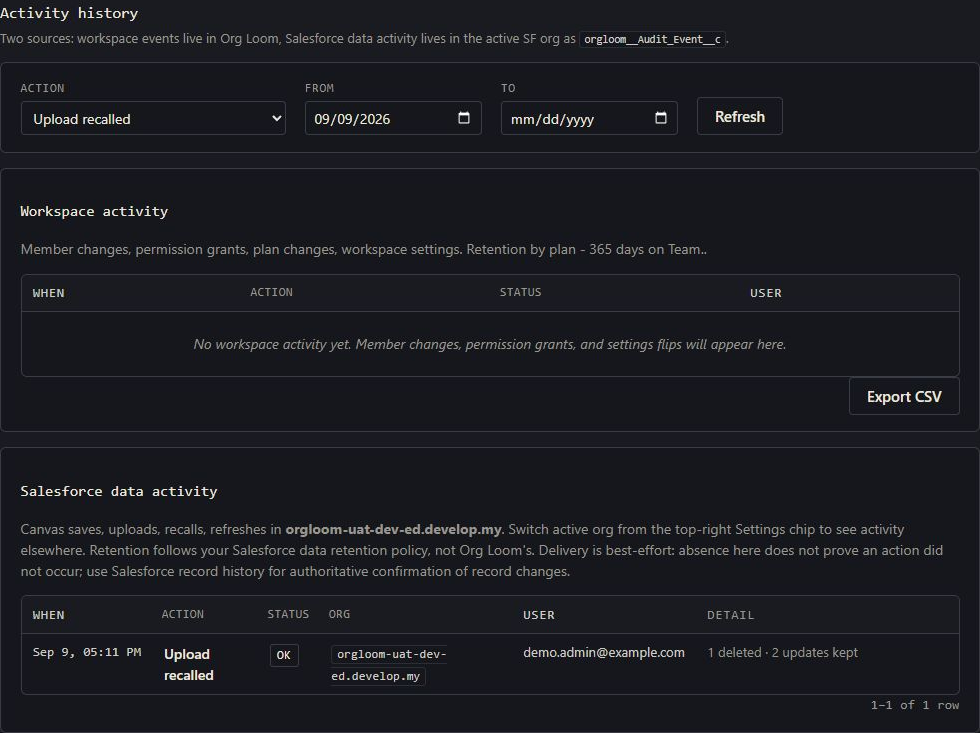
Review workspace and Salesforce data actions, investigate failures, and export workspace activity.