Walkthrough
Refresh records from Salesforce
Refresh replaces the canvas copy of an existing record with the values your Salesforce user can read now. Use it after someone else edits a record, after automation changes it, or when you want to discard your own unsaved canvas edits.
Before you begin
Refresh applies only to records that were loaded from Salesforce. A loaded record is a card linked to an existing Salesforce record. A draft exists only on the canvas, so there is nothing in Salesforce to refresh.
You will need:
- The relevant loaded record or records on the canvas.
- An active connection to the org that contains them.
- Permission to read the objects and fields.
- In a Team workspace, the Browse records permission from a workspace admin.
Refresh is read-only in Salesforce. It does not create, update, or delete a Salesforce record. It can replace unsaved values on your canvas, so review the warning before continuing.
The process
- Choose one record, selected records, or all loaded records.
- Confirm if any records have unsaved canvas edits.
- Review the refreshed cards and result message.
- Resolve any record that Salesforce no longer returns.
Step 1: Choose what to refresh
Use either entry point:
- Open a card's menu and choose Refresh from Salesforce to refresh one loaded record.
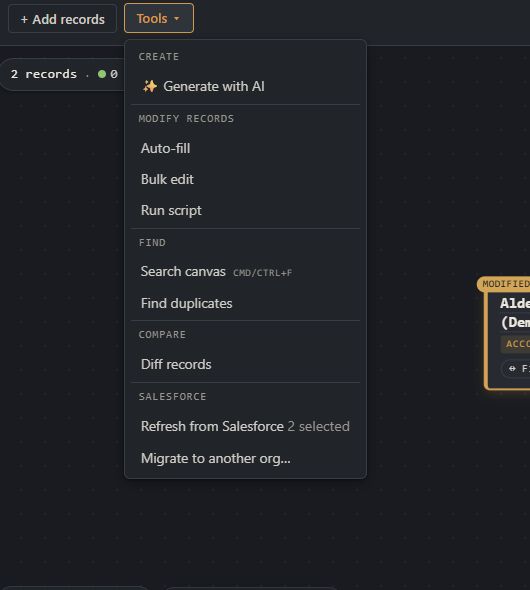
- Open Tools ▾ and choose Refresh from Salesforce to refresh in bulk.
The Refresh from Salesforce item in the Tools menu shows the number of loaded records it will refresh. That menu text refers to your current selection, or to all loaded records when nothing is selected.
When a selection is active, the bulk action includes only loaded records in that selection. Without a selection, it includes all loaded records. Drafts, records being created, and records already marked for deletion are not included.
If the selection contains no loaded records, the action is disabled. Clear the selection to target every loaded record.
Step 2: Decide whether to replace local edits
If any record in scope has values you changed on the canvas, Org Loom asks for confirmation. Continuing replaces those edits with the current Salesforce values and resets the record's modified state.
Choose Cancel if you need to keep any of those edits. You can narrow the selection and refresh fewer records, or compare two cards with Diff records. Diff compares canvas cards; it is not a preview of this refresh. Cancelling the warning refreshes nothing.
Step 3: Review the refreshed records
Org Loom retrieves the current values in groups and updates each card as its result arrives. Refreshed cards briefly pulse, and a message reports how many records were refreshed.
After a successful refresh, the values shown on the card become the new baseline. The card no longer appears modified unless you edit it again.
Salesforce field permissions still apply. A field that your user cannot read is not returned as part of the refreshed record.
Step 4: Resolve records Salesforce no longer returns
If Refresh cannot read a record because it was deleted or your user lost access, Org Loom clears the card's previously loaded values and shows an unavailable card. The record is excluded from upload.
- If the record was restored or access was granted again, select the card and use Tools ▾ → Refresh from Salesforce.
- Remove from canvas to remove the card and its canvas relationships without changing Salesforce.
Activity History
Refresh activity records the number of requested, successful, and failed reads. It does not record the field values. Large refreshes may appear as more than one activity because the records are read in groups.