Walkthrough
Recall a Salesforce upload
Recall lets you review and undo changes from a previous Org Loom upload. Recall handles the different changes in an upload as follows:
- Changed fields: You can restore selected fields to the values they had immediately before the upload, or choose fields to exclude from the recall.
- Created records: Records created by the upload can be deleted or ignored.
- Deleted records: Recall cannot restore records that the original upload deleted.
- Encrypted fields: Recall cannot restore encrypted fields.
Before you begin
Recall applies to one completed upload at a time. The upload must still appear in Upload history, and you must be connected to the Salesforce org that received it.
In a Team workspace, a workspace admin must grant you the Recall uploads permission.
You will also need permission in Salesforce to:
- Read the affected records and fields.
- Delete records that the upload created.
- Edit any fields you choose to restore.
Recall changes Salesforce. Review the proposed actions before confirming. Nothing is deleted or restored while Org Loom is preparing the review.
The process
- Open Upload history from the canvas.
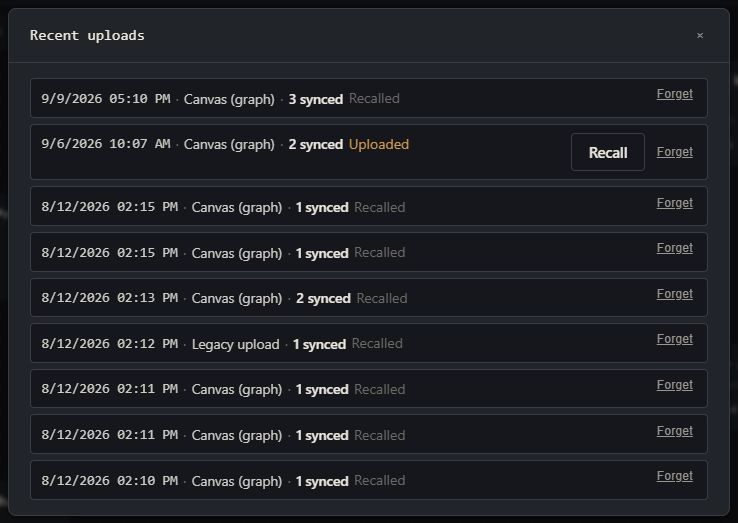
- Find the upload and choose Recall.
- Review the records and fields Org Loom can safely undo.
- Decide how to handle anything changed since the upload.
- Confirm the recall and review the result.
Step 1: Open the upload in Upload history
Select the Upload history circular-arrow icon immediately to the right of Upload to Salesforce in the canvas toolbar. Find the upload by its date, source, and record count, then choose Recall.
Org Loom checks the affected records in Salesforce before showing the confirmation. This check is repeated when you confirm, so a change made while the review is open is still protected.
Step 2: Review what Recall will change
Recall treats records that were created differently from records that already existed:
- Records created by the upload can be deleted from Salesforce.
- Records updated by the upload remain in Salesforce. Org Loom lists the fields it changed and lets you restore selected fields to the values they had immediately before the upload.
For an updated field, the confirmation shows the value written by the upload and the earlier value that will be restored. Fields that still contain the uploaded value are selected by default. Clear a checkbox if you want to leave that field unchanged.
Recall reverses only what the original upload changed; it does not replace the whole record. For each updated record, Org Loom can restore only the fields included in the original upload, using the Salesforce values captured immediately before that upload. Fields that were not changed by the original upload are not changed by Recall.
Choose which fields to restore. Fields are selected by default only when Salesforce still contains the value written by this upload. A field changed afterward is unchecked and preserved by default; select that individual field only when you deliberately want to restore its original value.
Recall only reverses the created records and updated fields shown in the review. Records deleted by the original upload are not included.
Step 3: Protect changes made after the upload
Someone may have edited a record after your upload. Org Loom calls this drift in the Recall review and keeps those later changes out of the recall by default.
- For an updated field, the review shows its value before the upload, the value Org Loom wrote, and its current Salesforce value. A field changed afterward remains unchanged by default.
- For a record created by the upload, the record is skipped by default when it has been modified since the upload.
Use changed-item overrides carefully. Selecting an individual field that changed after the upload replaces its current Salesforce value with the value captured immediately before the upload. Including a changed record that was created by the upload deletes that entire record and its later changes.
New uploads store the exact Salesforce modification timestamp used for this comparison. A created record from an older upload without that baseline is treated as uncertain and skipped by default.
A record that is already gone requires no action. If Salesforce will not let Org Loom verify a record, it is also skipped. Reconnect or ask your Salesforce administrator to check your object and field permissions before trying again.
Step 4: Review relationship warnings
Salesforce automatically deletes a master-detail child when its parent is deleted. If Recall finds that situation, it shows a Master-detail cascade conflict warning and lists the affected child records.
A child listed in this warning will be deleted even if Org Loom would otherwise skip it, because Salesforce performs the deletion when the parent is removed. Review the list and select the acknowledgement before continuing.
Step 5: Confirm and review the result
When the selected actions are correct, choose the red Recall button. Org Loom checks Salesforce again, then deletes the selected created records and restores the selected fields.
The result identifies completed actions and failures. Back in Upload history, the upload is marked Recalled, Partial recall, or Recall failed. For a partial or failed recall, correct the reported Salesforce problem and return to that upload in Upload history to retry the remaining work.
What happens to cards on the canvas
When a recall removes a record while its canvas is open, Org Loom can convert the corresponding card into a draft while keeping its field values. A later upload would create that draft as a new Salesforce record, so remove it from the canvas if you do not want to re-create it.
An older saved canvas may instead show unavailable in SF when Salesforce no longer returns a referenced record. If its previously loaded values remain on the card, open fix ▾ and choose one of these actions:
- Create a new draft from this card uses only the values already loaded on the card and first verifies that your Salesforce user can create that object. It does not retrieve the unavailable record.
- Remove from canvas removes the card and its relationships without changing Salesforce.
- Dismiss hides the warning but leaves the unresolved Salesforce reference in place. Org Loom skips that card during upload until you fix it.
If the Salesforce user lost access to the record, Org Loom redacts its values and shows a No access card instead. That card cannot be converted into a draft; restore access or remove it from the canvas.
What Recall does not undo
- Records deleted by the original upload.
- Later changes that you leave excluded from the recall.
- Updated field values from older uploads that did not capture the earlier values.
- Emails, integration calls, or other side effects previously produced by Salesforce automation.
Recall performs new delete and update operations in Salesforce. Your org's validation rules, flows, triggers, and other automation can run again while those operations are applied.
Forget is not Recall
Forget only removes an upload from Upload history list. It does not delete, restore, or otherwise change anything in Salesforce. Use Recall when you want to undo the upload's available Salesforce changes.