Org Loom

Salesforce managed package · VS Code extension

The flexible record workspace for Salesforce

Explore, edit, create, and share records in one workspace. Prepare changes, collaborate with teammates, and upload when you’re ready.

Org Loom product demo
  • Source-available
  • Free · no credit card
  • Your Salesforce permissions always apply

How it works

See what you can do on a canvas

Work on Salesforce records on a single screen

Bring Salesforce records together on a canvas. Create, edit, or delete records and change their relationships without switching tabs.

Make changes individually or in bulk, then review everything together before uploading to Salesforce.

See how to work with records
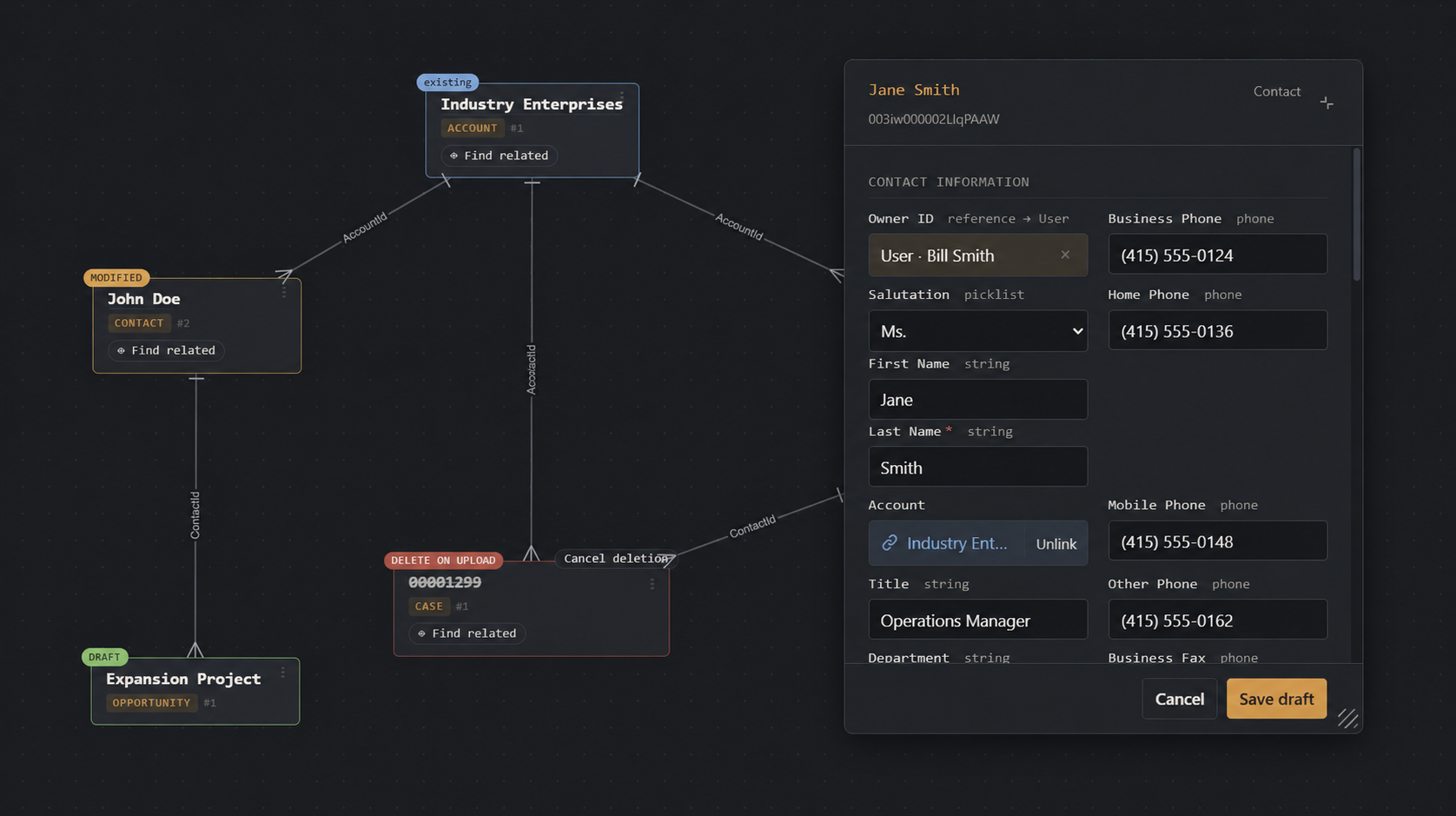
An open contact editor alongside an existing account, a modified contact, a draft opportunity, and a case marked for deletion.
1. Create, update, link, or delete

Draft new records, edit existing ones, change relationships, and stage deletions on the same canvas.

Three ways to add records: add directly to the canvas, browse records, and import via SOQL.
2. Bring records onto your canvas

Browse records, add them directly on the canvas, or import them using SOQL, CSV, or JSON.
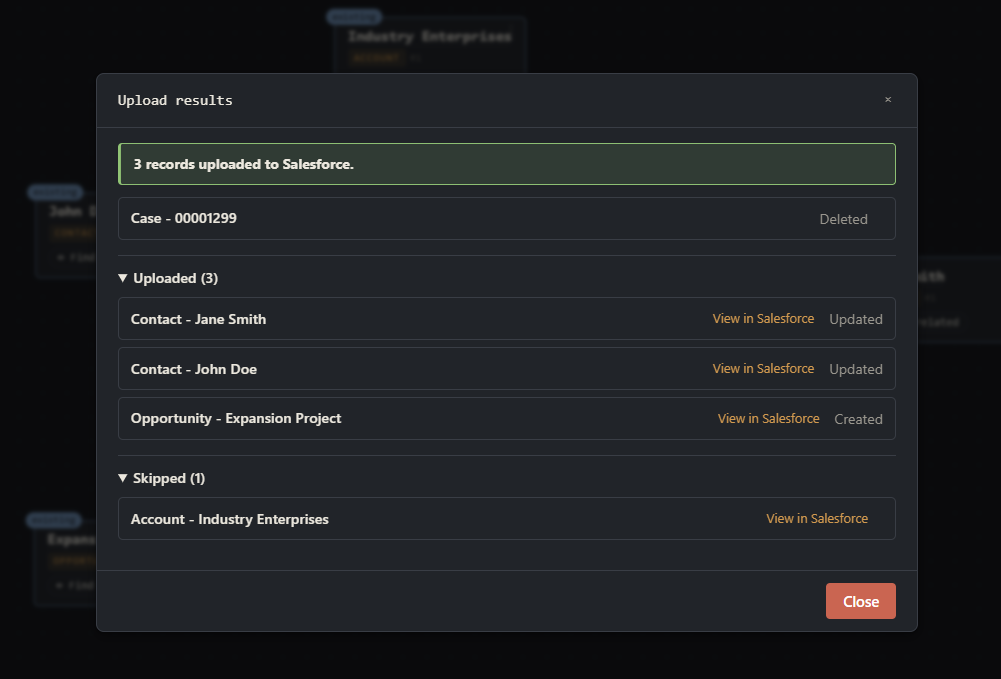
Upload results showing two updated contacts, a created opportunity, a deleted case, and an unchanged account that was skipped.
3. Upload and see the results

Upload when you are ready, then see a consolidated view of the results with links to Salesforce.
Share canvases with colleagues

Create a canvas with records and requests for the information you need, then send it to teammates and choose what they can do with it. Their Salesforce permissions still apply, and they don’t need a paid Org Loom subscription to view the canvas or contribute.

See how to share a canvas
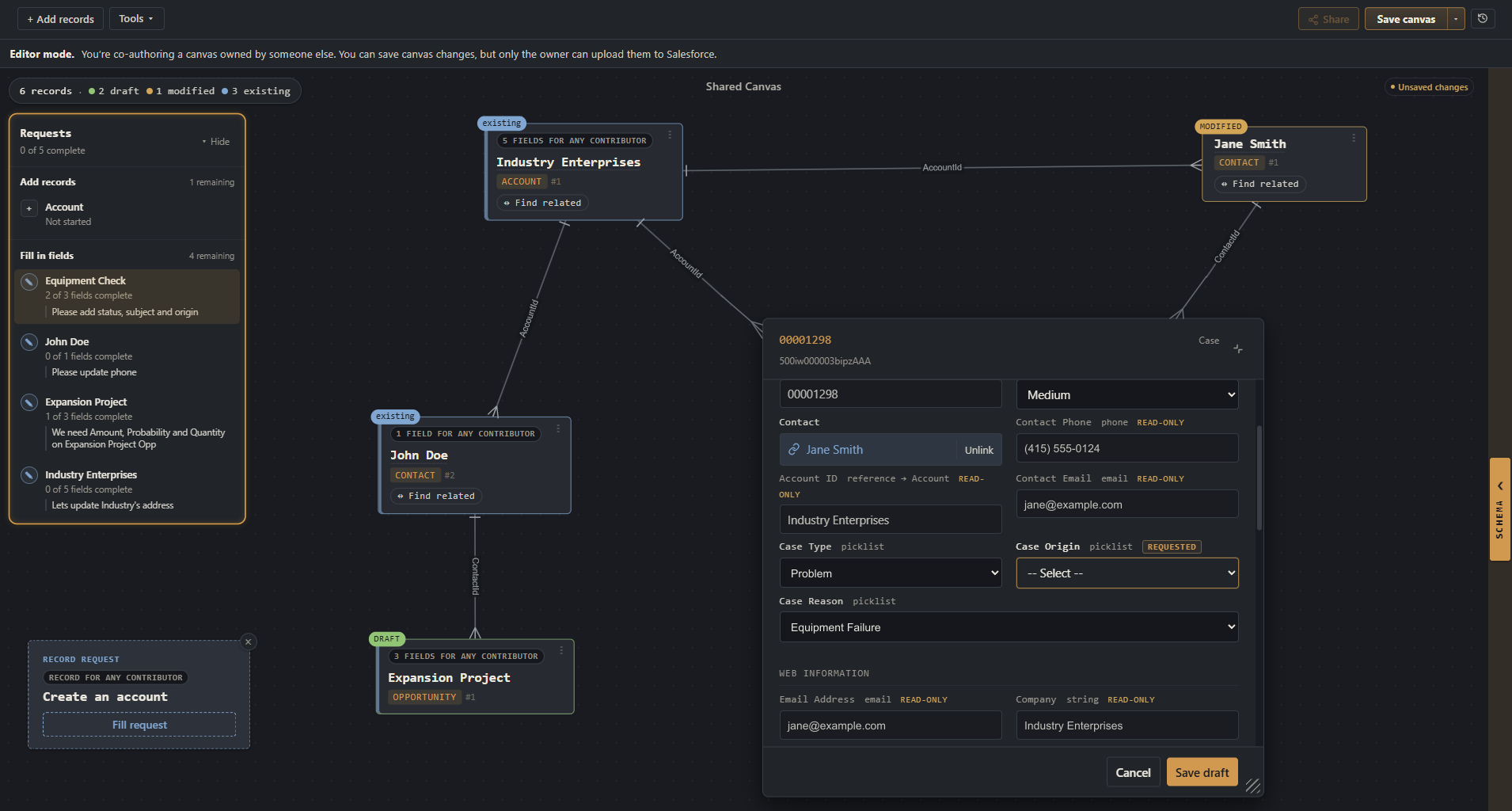
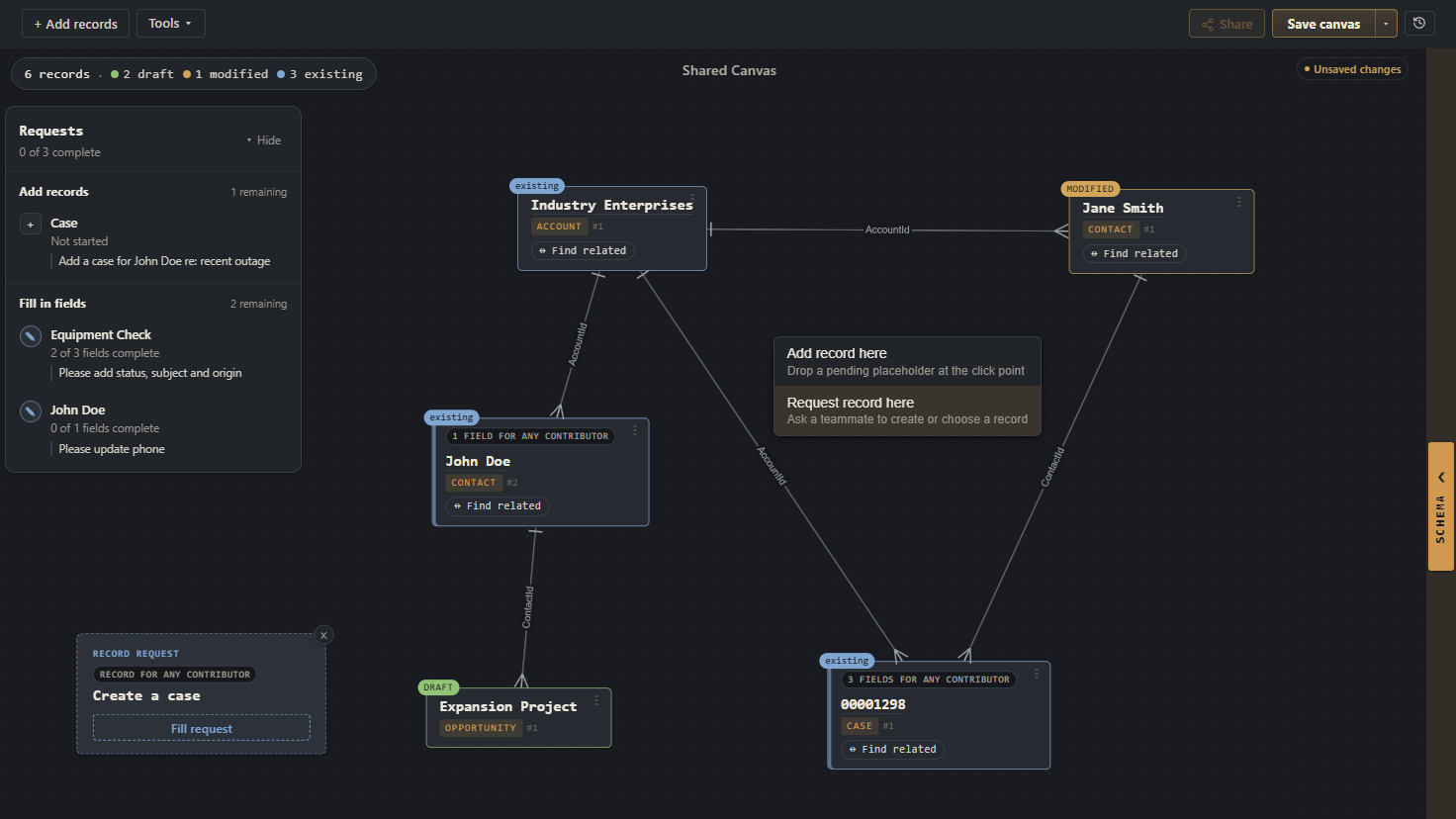
A shared canvas with existing, modified, and draft records, a requested new case, requested case and contact fields, and a Requests panel explaining the tasks.
1. Prepare the canvas and requests

Pull in relevant records and mark fields for teammates to fill out. You can also request new records and provide instructions for creating them.

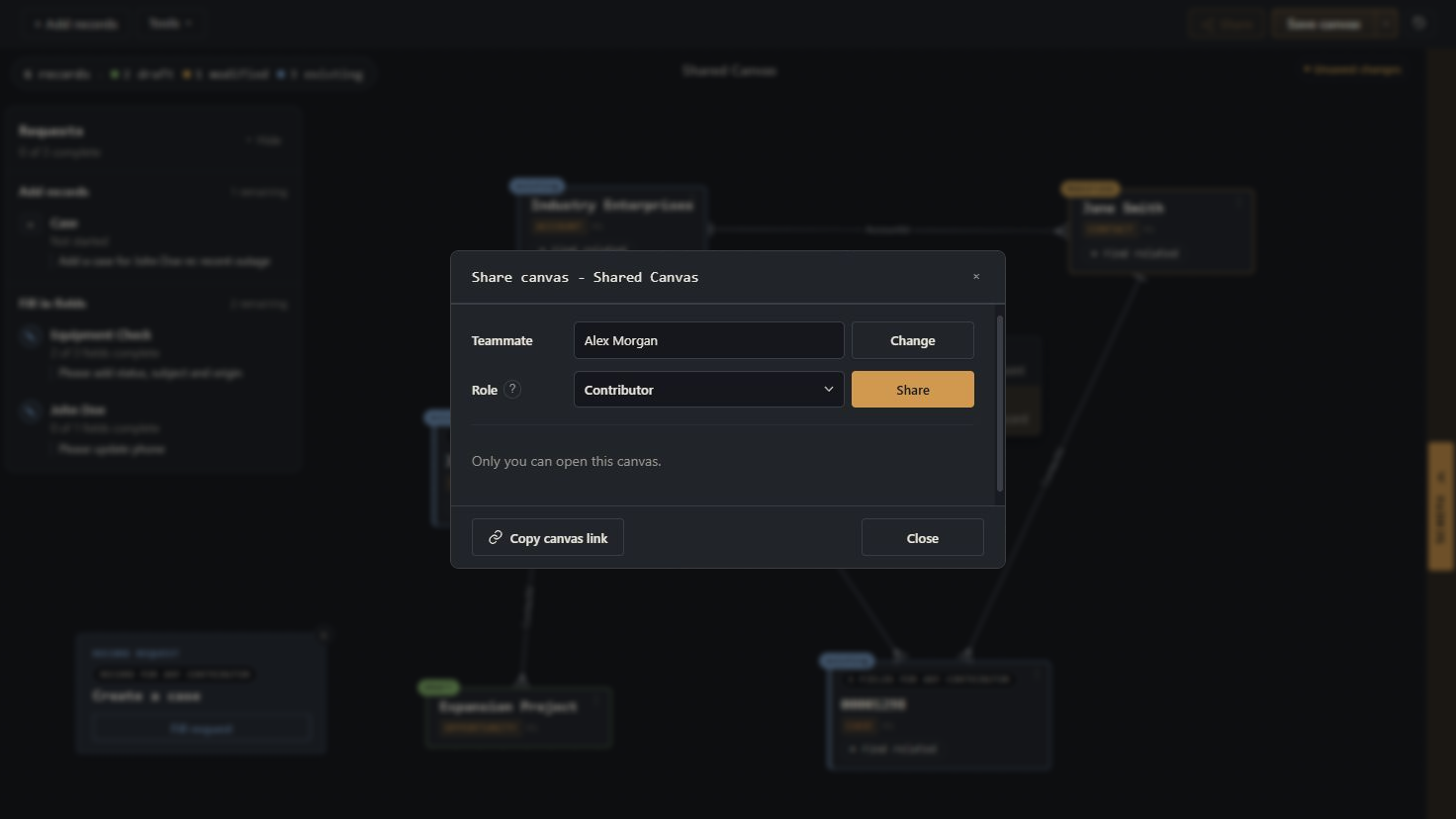
Sharing controls with Alex Morgan selected and Contributor access chosen.
2. Choose who to share with

Select a teammate and assign them a role. You can grant access to view, contribute (fill in only your requests) or edit.

A highlighted Requests panel guides a teammate through record and field requests, with the case editor open and the requested Case Origin field left blank.
3. Let teammates follow the guide

Your teammate opens the shared canvas and is guided through a task list of which records to create and which fields to fill in.

Migrate records between orgs

Moving records between Salesforce orgs isn’t always a direct copy. Fields and picklist values can differ, and updating existing records means finding the right match in the destination org.

Org Loom guides you through these differences. Choose which records to create or update, match existing records, and map fields and values for the destination. Review the changes on your canvas before uploading to Salesforce.

See how to migrate between orgs
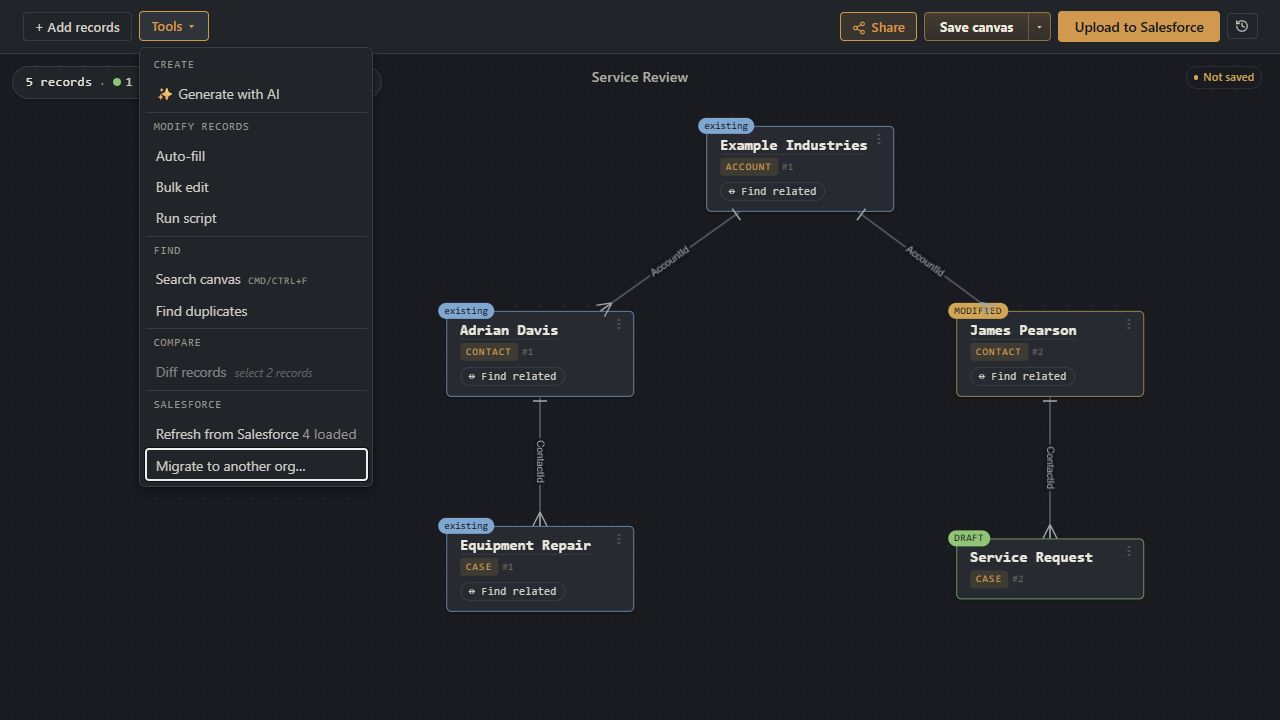
A prepared canvas with existing, modified, and draft records beside the open Tools menu and Migrate to another org option.
1. Prepare your canvas and start migration

Include existing records, new drafts, and any changes you want to carry into the destination org.

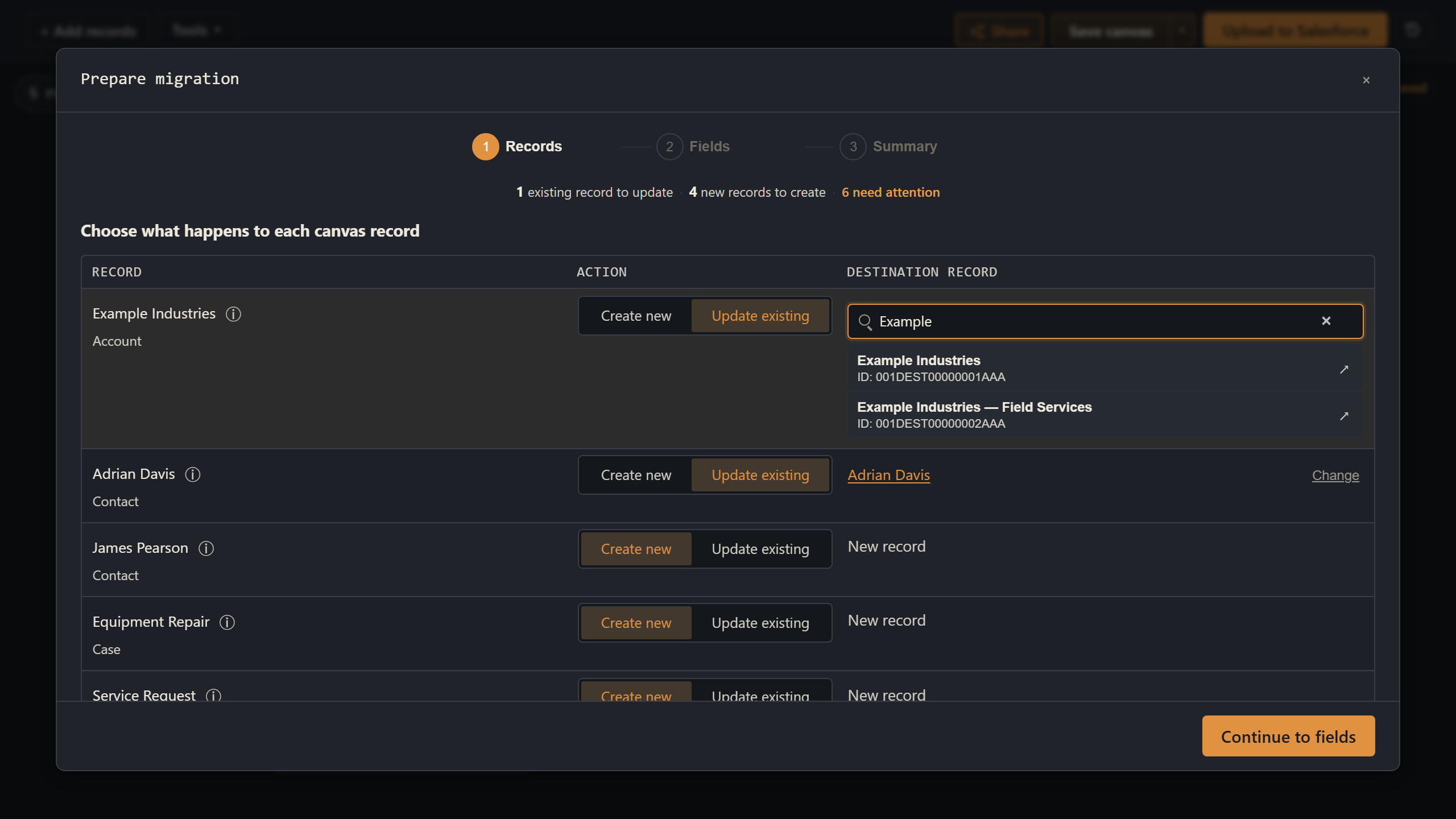
Migration table with an active destination record search and matching records available to choose.
2. Reconcile destination records

Connect to the destination org and import the migration file generated in step 1. Choose which records to create and which to update, matching each update to an existing record in the destination org.

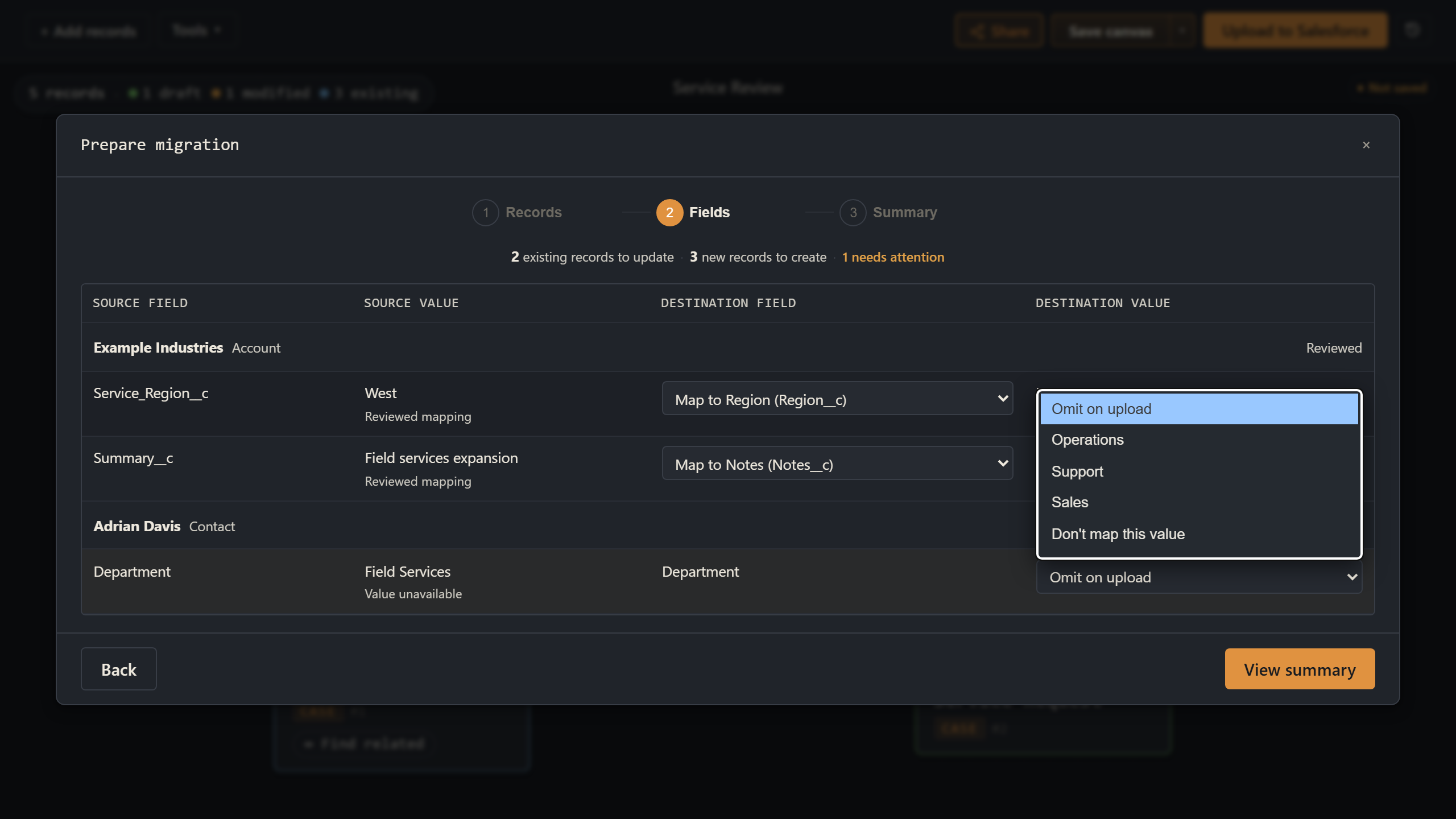
Migration Fields table with an open destination value dropdown for resolving a picklist difference.
3. Resolve field differences

Map fields and values, then review and apply the plan to your canvas. Return to the canvas to continue editing or upload to Salesforce right away.

Security

Security and data protection

Runs where you work

You can run Org Loom as either a Salesforce managed package or a VS Code extension. Either way, your record data stays between your machine and Salesforce.

Your permissions, enforced

Object, field, and record permissions always apply. Org Loom never grants access you don’t already have.

Encrypted & source-available

Canvases are encrypted and stored in your org. The canvas, package, and extension source code is public to inspect, alongside the security docs.

Comparison

Where Org Loom fits

GridBuddy Connect
Workbench
Inspector Reloaded
Org Loom
Bulk CSV load (millions of rows)
—
✓
—
—
Source-available
—
✓
✓
✓
Edit records inline
✓
✓
✓
✓
Spatial record workspace
—
—
—
✓
Find and add related records
✓
—
—
✓
Compare records field by field
—
—
—
✓
Find and remove duplicates
—
—
—
✓
Data collaboration
✓
—
—
✓
Migrate data with guided reconciliation
—
—
—
✓

FAQ

Common questions

What is Org Loom?

Org Loom is a visual workspace for your Salesforce records. It is available as a managed package inside Salesforce and as a VS Code extension. It allows you to bring existing records and new drafts onto one canvas, see how they relate, and prepare changes together without switching between record pages and spreadsheets. When you are ready, upload your changes to Salesforce.

Can I try Org Loom before installing anything?

Yes. The interactive playground lets you explore the canvas with sample Salesforce data without creating an account or connecting an org. When you are ready to use your own data, sign up and connect a sandbox or production org.

Yes. Watch the demo here, or try the interactive playground on a desktop or laptop with sample Salesforce data. No account or Salesforce connection is needed to try it.

You can also run the source-available canvas core yourself without using orgloom.com. The PolyForm Internal Use License 1.0.0 permits internal business use, subject to its terms. This option requires your own setup and does not include the hosted account, workspace, billing, or administration features.

Does the open beta cost anything?

No. The open beta is free, and no credit card is required to join. You will only be charged if you choose to subscribe to a paid plan. Participating in the beta will not automatically enroll you in a paid subscription.

How does Org Loom keep my data secure?

The managed package runs inside your Salesforce org. Your browser handles the canvas interface, while Salesforce handles record access and updates through the managed package. Your existing object, field, and record permissions still apply, and saved canvases are encrypted and stored in your Salesforce org. You can inspect the canvas source and native Salesforce package source, and read managed-package security or extension security for more information.

Do I need a Salesforce administrator to get started?

For the Salesforce version, an administrator installs the managed package and assigns package access. The VS Code extension needs no managed package; your user needs API Enabled, View Setup and Configuration, and access to the records and fields you want to work with. Follow the Salesforce setup guide or the VS Code setup guide.

Where can I find answers to technical questions?

Visit our documentation for setup guides, step-by-step walkthroughs, troubleshooting, and details about security and data handling.

Ready to try it in your org?

Install the Salesforce managed package or VS Code extension to get started.

Get Org Loom free →