Walkthrough
Build and upload a canvas
Create an Account and a Contact together, connect the Contact to its Account, and upload both to Salesforce. This builds on the Canvas quick start by showing how related records work on the same canvas.
Before you begin
Connect a sandbox or another Salesforce org where you can create sample Accounts and Contacts. Your Salesforce user needs permission to create both objects and edit the fields used here. In a Team workspace, you also need the Upload to Salesforce feature permission.
Start with an empty canvas. To open one, use Canvases → + New canvas at the top; save any work you want to keep first. The sample Account and Contact will not be created in Salesforce until you confirm the upload.
Step 1: Add the two drafts
- Click Add records → Add a blank record. On the card that appears, click Create new record, search for Account, and select it.
- Double-click the Account card. Enter Demo Company in Account Name, fill any other required fields, and click Save draft.
- Repeat the same steps to add a Contact. Enter Demo Contact in Last Name, fill any other required fields, and click Save draft.
- Drag the cards by their centers to place them beside each other with space between them.
Each card has a DRAFT label because it represents a new record that has not yet been created in Salesforce. Saving a draft updates the card on the canvas, not Salesforce.
Step 2: Connect the Contact to the Account
The Contact needs to refer to its Account. Because the Account is still a draft, it does not have a Salesforce record ID yet. A line between the cards tells Org Loom to fill that relationship when the records are uploaded.
- Move the pointer to the border of the Contact card, then drag from that border onto the Account card. Dragging from the center moves the card instead.
- If a field picker appears, select Account ID (
AccountId) on the Contact. This is the field that identifies the Contact's Account. - Check that a line connects the two cards and is labeled
AccountId.
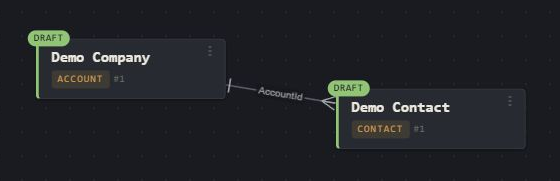
Org Loom will create the Account first, then use its new Salesforce ID when it creates the Contact. The line does not create either record by itself.
Step 3: Review both records for upload
Click an empty area of the canvas to clear any selected cards. Then click Upload to Salesforce in the upper-right toolbar. If that button instead says Upload 1 selected, a card is still selected and the action would cover only that selection.
In the upload dialog, confirm that Records included is 2 and that Records to upload shows one new Account and one new Contact. Org Loom handles the upload sequence automatically so the Contact can refer to the newly created Account. If the checks report a problem, cancel, correct the draft or relationship, and open the upload again.
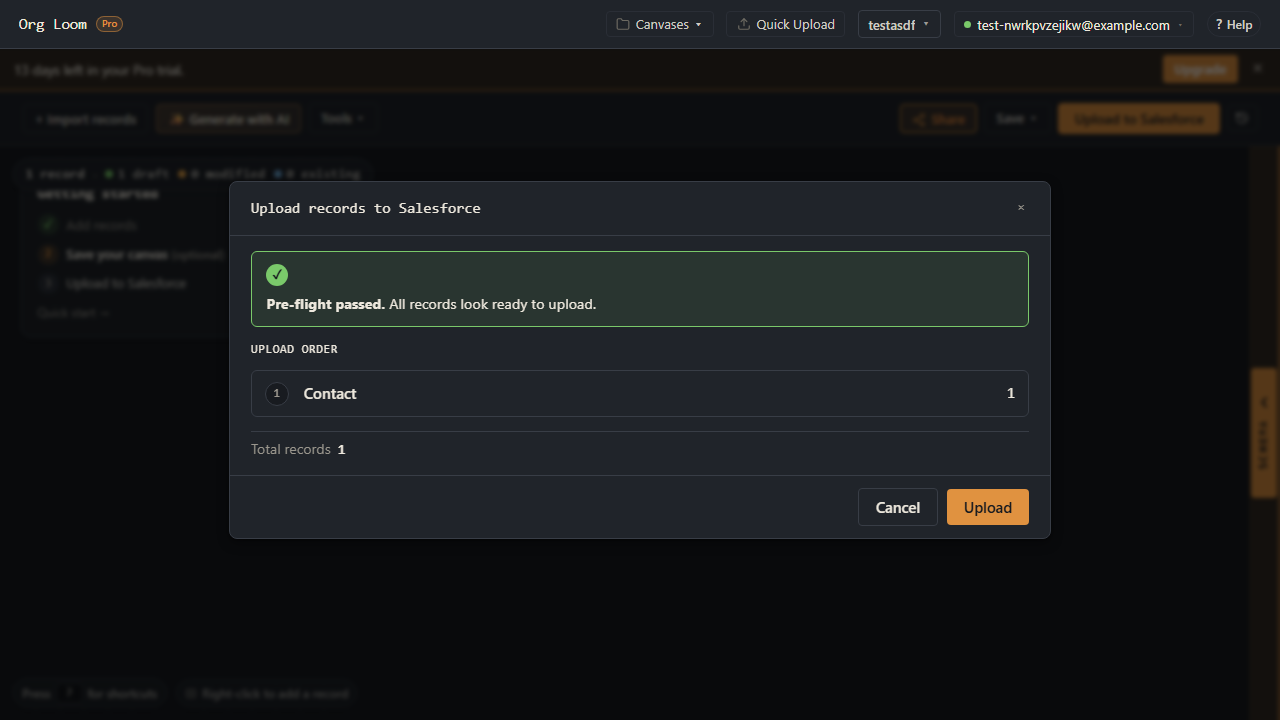
Step 4: Upload and verify the relationship
Click Upload in the dialog. Salesforce applies its normal permissions and automation as it creates the records, so it can still reject a record even when the initial checks pass.
Review the result for each record. For a successful Contact, click View in Salesforce beside it. Confirm that its name is Demo Contact and its Account is Demo Company. Back on the canvas, successfully uploaded cards are no longer drafts.
If only part of the upload succeeds, keep the successful records and correct the failed ones before retrying. Do not recreate the whole sample as new drafts, which could create duplicates.
Optional: Save the canvas for later
Click Save canvas, enter a name, and click Save. Reopen it later from Canvases. Saving preserves the layout and record contents without uploading changes to the Account or Contact; you can also save before uploading if you want to finish later.
See Save and reopen a canvas for updating an existing saved canvas or exporting a copy.
When you build a larger canvas
- Mix new and existing records: drafts create records; modified existing cards update records. Unchanged existing cards do not need a write. See Edit existing Salesforce records.
- Upload a selection: the toolbar button shows how many selected records will be included. Include any related drafts needed by those records, and review the dialog for omitted relationships.
- Record limit: a canvas can contain up to 500 records. Split larger work into separate canvases.
- Undo an upload: the circular-arrow Upload history button is immediately to the right of the upload button. See Recall a Salesforce upload for what can be undone.