Walkthrough
Install Org Loom and get set up
Install the managed package, give your Salesforce users access, and open your first canvas. A Salesforce administrator completes the installation and permission assignments.
Before you begin
- Have the package installation link from your Org Loom welcome email ready. If you need it, join the free beta or contact support@orgloom.com.
- Use a Salesforce administrator who can install managed packages and assign permission sets.
- Decide which org you want to use. You can start in a sandbox to try the workflow with test records.
- Use Salesforce Lightning Experience on a desktop or laptop for the canvas.
Org Loom runs inside Salesforce. Users open the installed app with their existing Salesforce session.
The process
Step 1: Install the managed package
- Open the Install Org Loom link in your welcome email. Use the login option below that matches the Salesforce org where you want to install it.
- For a sandbox, use Install Org Loom in a sandbox.
- If your org uses a custom Salesforce domain (My Domain) or single sign-on, select Use Custom Domain on the Salesforce login page, enter your org’s domain, and continue with your usual login method. Use the sandbox’s domain when installing into a sandbox.
- Confirm that you are in the intended org and review the package details.
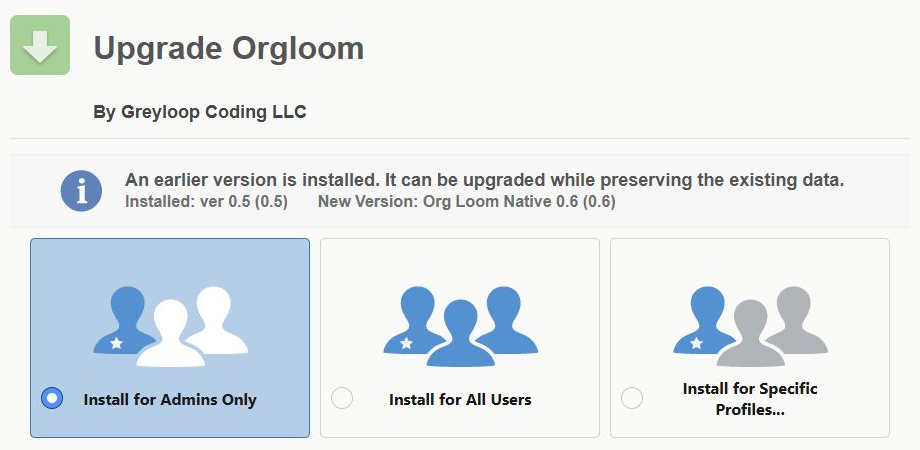
- Select Install for Admins Only, review the installation terms, and select Install.
- Wait for Salesforce to finish. If installation continues in the background, Salesforce will email you when it is complete.
- In Setup, search for Installed Packages and confirm that Orgloom is listed.
Installing directly through My Domain. If your org requires its own login URL, replace only login.salesforce.com or test.salesforce.com in the Salesforce installation URL after following Install Org Loom with your org’s My Domain login hostname. Keep /packaging/installPackage.apexp and the entire query string, including p0, unchanged. Find the correct login URL in Setup → My Domain or ask your administrator; use the Salesforce login domain, not an Experience Cloud site address. See Salesforce’s My Domain URL formats.
Step 2: Give users access
Assign one Org Loom permission set to each user based on their role:
- Org Loom Canvas: access to the canvas tab.
- Org Loom Admin: canvas access plus the administration tabs and controls for managing feature access.
The installer receives Org Loom Admin automatically. Administrators do not need both sets.
- In Salesforce, open Setup and search for Permission Sets in Quick Find.
- Open the appropriate Org Loom permission set and select Manage Assignments → Add Assignments.
- Choose the users and complete the assignment. Repeat for the other role as needed.
These sets provide app access. You will enable individual features in the next step, including for administrators.
Salesforce data permissions still apply. These permission sets do not grant access to business objects, fields, or records. Users also need their normal Salesforce permissions for the records they will work with.
Step 3: Choose feature permissions
New users start with features disabled, including administrators. Set up your own feature access first, then repeat for each person who will use the app.
- Open Salesforce’s App Launcher, search for Org Loom, and open the app.
- Open the Org Loom Team Administration tab.
- Use Find user to search by name or username, then select the user. Start with your own Salesforce user.
- Use Enabled for user to grant the features the person needs, such as browsing records, saving canvases, sharing, or uploading.
- Check Enabled for org and Availability. An org-wide disabled feature remains unavailable even when the user has an individual grant.
- Wait for the Saved message after each change. Have the user reopen the canvas to pick up the updated permissions.
To follow the next step, enable Browse records, Save canvases, and Open saved canvases. Enable Upload changes for users who should apply changes to Salesforce. Add sharing, requests, exports, or other tools as needed.
See Manage Org Loom features in Salesforce for more detail.
Step 4: Open the canvas
- From the Org Loom app, open Org Loom Canvas.
- Select + Add records and browse for a record your Salesforce user can access.
- Load the record onto the canvas and open its card to inspect the fields.
- Use Save canvas to save your workspace. Use Canvases to reopen it later.
Saving and uploading are separate. Saving preserves the canvas in your org. Creating, updating, or deleting Salesforce business records happens when you explicitly upload changes. Refresh recovery can restore your last successful checkpoint after a refresh; continue to save work you want to keep or share.
If something is missing
- Org Loom is missing from the App Launcher: confirm installation completed and the user has Org Loom Canvas or Org Loom Admin. Refresh Salesforce after assigning access.
- A tool is unavailable: check Enabled for user and Enabled for org in Team Administration, then reopen the canvas. Org Loom Admin does not automatically enable features for its holder.
- An object, record, or field is missing: check the user’s Salesforce object permissions, field-level security, record sharing, and record-type access.
- The administration page is unavailable: confirm the designated administrator has Org Loom Admin.
If you are still stuck, contact support@orgloom.com with the package version and the error message.