Walkthrough
Browse Salesforce records
Find existing Salesforce records with point-and-click filters, preview the matches, and load the records you want onto the canvas. Browse is a good starting point when you do not need to write a SOQL query.
Before you begin
Connect the Salesforce org that contains the records. Browse follows the connected user's object, field, and record access. Standard and custom objects can appear when the user can query them. Salesforce setup and system objects are intentionally left out of the picker.
In a Team workspace, you need Browse records to search and preview matches, and Import via SOQL to load the chosen records onto the canvas. Ask a workspace admin to grant both permissions.
Choose the import method that fits the task:
- Browse records when you want to filter and preview existing records without writing a query.
- Import via SOQL when you need a precise query, selected fields, or related child records.
- Import CSV when the rows come from a spreadsheet or do not yet exist in Salesforce.
The process
- Open Browse records from the canvas.
- Choose an object.
- Add filters and review the match count.
- Select individual records, or leave the selection empty to load all matches.
- Load the records onto the canvas.
Nothing is added to the canvas while you are filtering. Salesforce is not changed by Browse or by loading the results.
Step 1: Open Browse records
On an empty canvas, choose Browse records from Start building your canvas. At any other time, open + Add records in the canvas toolbar and select Browse records.
Step 2: Choose an object
Select the Salesforce object you want to search. The window shows a live count and a preview of matching records. With no filters, the count represents all records of that object that the connected user can access.
If an expected object is missing, first confirm that you connected the intended Salesforce user and org. Then ask a Salesforce admin to check the user's object permissions.
Step 3: Add filters
Choose + Add filter, then select a field, a comparison (such as equals), and a value. Org Loom adjusts the available comparisons and value control for the Salesforce field type. For example, a date can use before or after, while a picklist offers its allowed choices.
- Multiple filters are combined, so a record must satisfy all of them.
- Use is empty or is not empty without entering a value.
- For a lookup filter, enter the related Salesforce record ID.
- Remove a filter with the close button on its row.
Only fields Salesforce allows in a filter are offered. A readable field may still be absent when Salesforce marks it as non-filterable, such as some long-text fields.
Step 4: Choose what to load
There are two ways to continue:
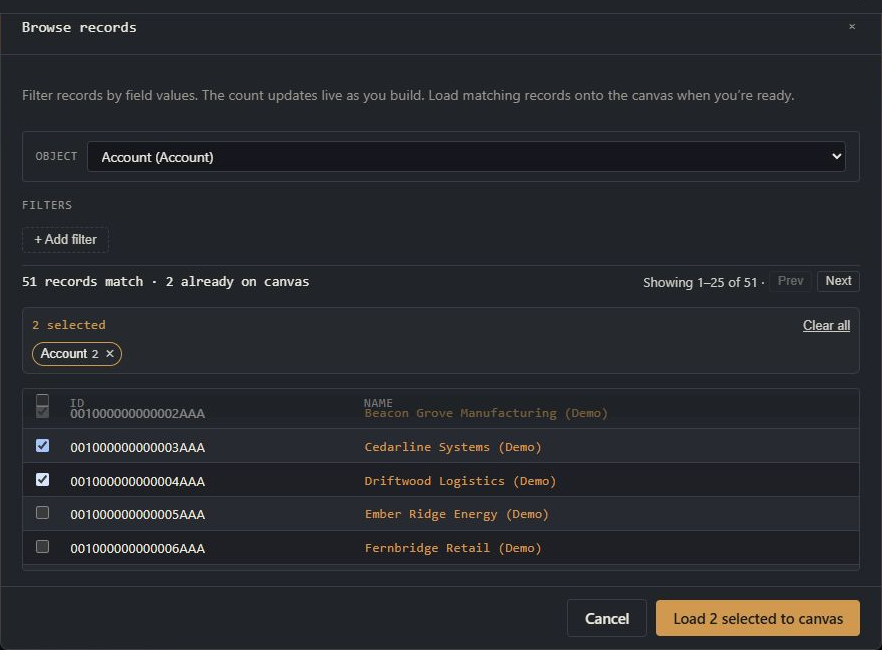
- Load all matches: leave every checkbox clear. The button reads Load all N to canvas and loads every new match, not just the previewed page.
- Load selected records: check individual rows, or use the checkbox in the table heading to select the current page.
The selection basket is the summary of records you have checked. Selections remain there when you move between preview pages or switch objects. This lets you select Accounts, switch to Contacts, and load both sets together. Use Clear all, or remove one object's group from the basket, if you want to start over.
Step 5: Load the records
Select the load button. The window closes and the records appear as existing cards on the canvas. Records already present on the canvas are shown as unavailable in the preview and are not duplicated.
When the loaded records contain Salesforce relationships to one another, Org Loom preserves the corresponding links where it can. From here you can edit, compare, refresh, or bulk-edit the cards. Salesforce changes only after a later upload.
Made the wrong selection? Use the Undo action in the confirmation message immediately after loading to remove the newly added cards and their canvas links.
Limits and troubleshooting
- A canvas holds up to 500 records. Refine a large result before loading when it would exceed the available space.
- Browse searches one object at a time. Use a SOQL child query when you need to discover a parent and its children in one query.
- A network or Salesforce error leaves the canvas unchanged. Correct the connection problem and try the load again.