Walkthrough
Move a Pro workspace to Team
When you are ready to invite teammates, you can convert your existing paid Pro workspace to Team. This keeps the same workspace and its saved canvases while replacing its Pro subscription with a Team subscription.
Before you begin
This guide is for an admin of a workspace with an active, paid Pro subscription. Pro access provided during the open beta is different: if the upgrade page says paid plan changes are unavailable, you cannot complete this conversion yet.
This changes your subscription. Review the billing period, seat count, and total before confirming. A seat is a place for one workspace member, including you.
Step 1: Open the upgrade options
Open the account and workspace menu in the upper-right corner. Select the Pro workspace you want to upgrade, click Settings, select the Billing tab, and click Upgrade.
The upgrade page offers two different outcomes:
- Convert this workspace to Team: keep the current workspace and change its plan. Follow the remaining steps below.
- Create a new Team workspace: create a separate workspace with a separate subscription. Your existing workspace stays on Pro. Choose + New Team workspace only if you want both workspaces.
Step 2: Review the Team subscription
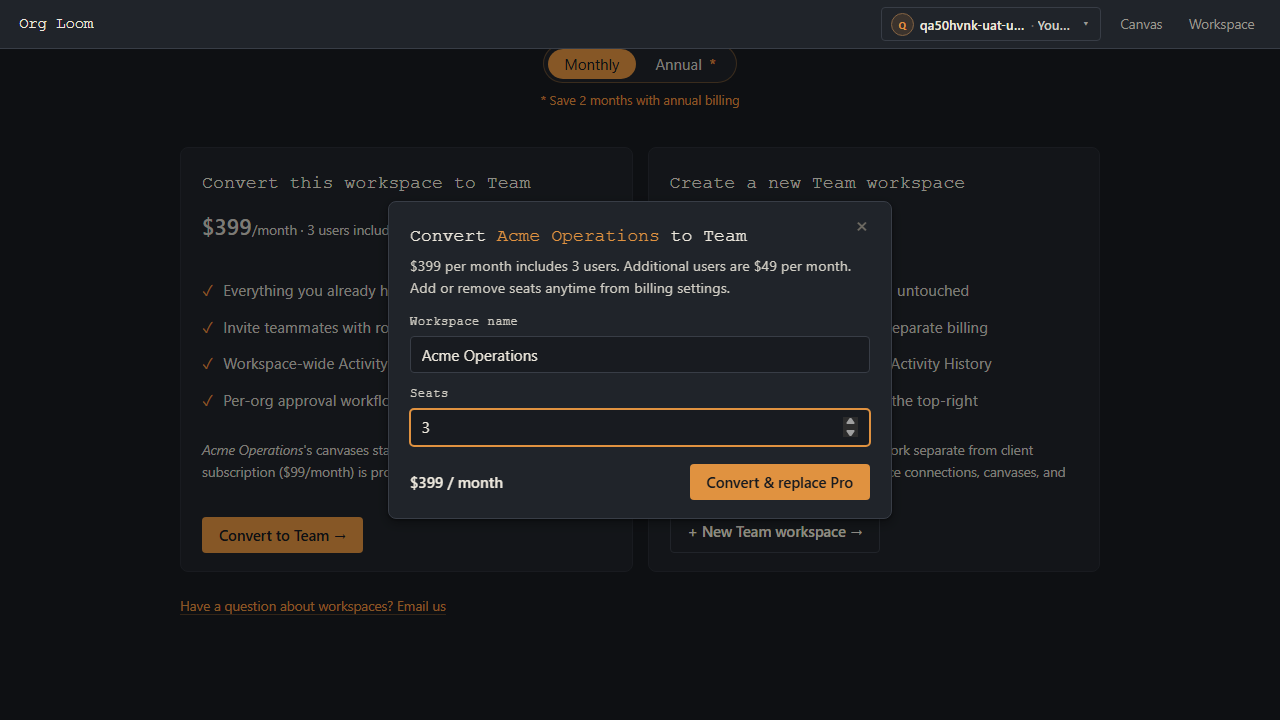
Choose Monthly or Annual billing on the upgrade page, then click Convert to Team. In the confirmation dialog, check the workspace name and select the number of seats for everyone who will use it.
The displayed total updates with the seat count. Check both the amount and whether it is charged per month or per year. The screenshot below shows the monthly option for a demo workspace; use the price displayed in your own confirmation.
Step 3: Confirm and check Billing
Click Convert & replace Pro when the details are correct. This updates the existing subscription rather than starting a second one for the same workspace. Stripe adjusts the charges for the remaining portion of the billing period.
Org Loom returns to the Billing tab with a conversion confirmation. Check that the workspace now shows Team and the seat count you selected. If an error appears instead, follow that message before trying again.
Set up your team
Open the Workspace tab to invite teammates and review their feature permissions. Return to Billing to manage seats, payment details, and invoices.