Walkthrough
Find duplicate records
Compare records already on the canvas, group likely duplicates, and choose which record to keep in each group. Draft duplicates can be removed immediately, while existing Salesforce records are only marked for deletion until you upload.
Before you begin
Find duplicates examines the cards on the current canvas. It does not search every record in your Salesforce org. You choose one object type and the fields that should identify the same person, company, or other record.
You will need:
- At least two eligible records of the same object type on the canvas.
- Useful identifying values, such as Contact Email or Account Name.
Scanning does not change any records. The canvas changes only after you review the groups and choose Remove duplicates. Salesforce changes only if you later upload a record marked for deletion.
The process
- Open Tools ▾ → Find duplicates.
- Choose an object and the fields that define a match.
- Choose whether all selected fields or any selected field must match.
- Scan the canvas and review each duplicate group.
- Choose one record to keep per group, then remove the others.
Step 1: Open Find duplicates
Open Tools ▾ in the canvas toolbar and choose Find duplicates in the Find section.
The action is unavailable when no object has at least two eligible records. Records already marked for deletion, placeholders, and schema cards are not included in the scan.
Step 2: Choose the object and match fields
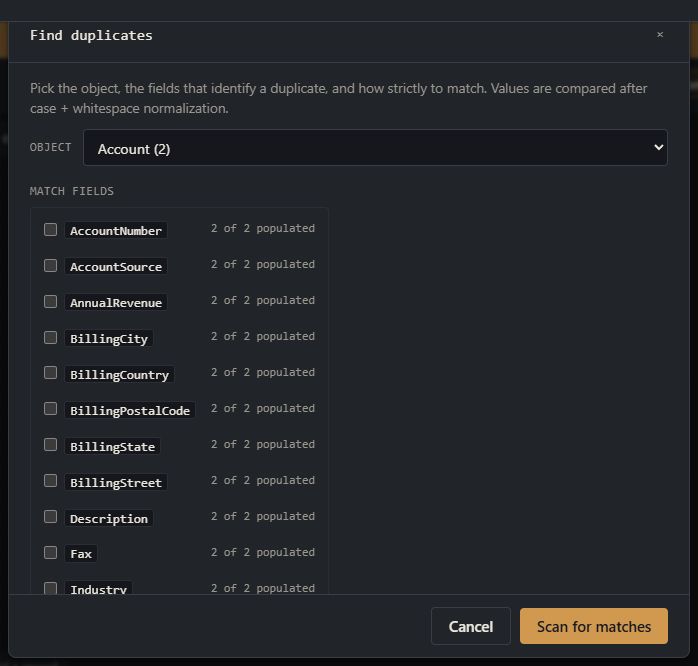
Choose one object type. The list includes only objects with at least two records available to compare. Then select the fields that should agree when two cards represent the same record.
Org Loom marks a useful starting field as suggested, such as Email for Contacts or Name for Accounts. The populated count beside each field shows how many of the available records contain a value. You can keep the suggestion or choose a combination that better reflects your data.
Step 3: Choose the match rule
- All selected fields agree is the safer default. Every selected field must contain a matching value. A record that is missing one of those values is left out of the group.
- Any selected field agrees is broader. Records join a group when they share at least one selected value. Matches can chain: if A matches B by Email and B matches C by Phone, all three are placed in one group.
Matching ignores capitalization and extra whitespace. Blank values do not count as matches, so records with empty identity fields are not grouped merely because both are incomplete.
Use the broad rule deliberately. A shared office phone or group email can connect several people into one group. Review the full group before removing anything.
Step 4: Scan and review the groups
Select Scan for matches. Org Loom shows one group for each set of matching records. Each row identifies the card as a draft or a record loaded from Salesforce and labels it KEEP or REMOVE.
Org Loom initially prefers a loaded Salesforce record over a draft. When every candidate has the same state, it selects the card that was added to the canvas first. This is only a starting choice; select a different row whenever another record should be kept.
Use the Go to this record action to briefly reveal and highlight a card behind the modal. Choose Back if the groups look too broad or too narrow and adjust the fields or rule.
Step 5: Choose what to keep
Each group must keep exactly one record. Review which candidate has the correct identity, field values, relationships, and local edits. Changing the keep choice updates the remove count immediately.
Find duplicates does not merge field values. If the losing card has information the keeper needs, cancel the results and use Diff records to copy those values first. Then run the duplicate scan again.
Step 6: Remove the duplicates
Select Remove N duplicates. The result depends on the losing card:
- A draft is removed from the canvas immediately, along with its canvas relationships. It never existed in Salesforce.
- A loaded record stays on the canvas and is marked for deletion. Salesforce is not changed until the next upload.
The result toast reports what was removed or marked and offers Undo. Undo restores the entire operation, including draft relationships and delete marks. If the canvas changes after the operation, the older Undo is refused rather than replacing newer work.
A loaded record with unsaved local edits is protected from being marked for deletion automatically. It remains on the canvas so you can review or discard those edits before deciding what to do.
When no duplicates are found
The results show No duplicates found when no group meets the selected rule. If you expected a match, check whether the chosen fields are populated on both records and whether the match rule is too strict.
Values must match after capitalization and extra whitespace are ignored; Org Loom does not guess whether similar spellings mean the same thing. For example, Acme Corp and Acme Corporation do not match, and phone-number punctuation is not standardized. Use Bulk edit first if values need to be normalized.