Walkthrough
Generate draft records with AI
Describe a sample dataset in plain language, choose the Salesforce objects it may use, and review the proposed records before adding them to the canvas. The AI creates drafts and relationships only; it does not edit existing records or write to Salesforce.
Before you begin
You will need:
- An active Salesforce connection.
- The Generate with AI permission in the active workspace.
- A Pro or Team workspace with monthly AI allowance or available AI credits.
Org Loom reads the field definitions for the objects you choose so the proposal can use the correct field names, types, picklist values, and relationships. It does not send Salesforce record values or the existing contents of your canvas to the AI.
Do not include sensitive data in the description. The text you type is sent to the AI provider to generate the plan. Use fictional examples when creating test or demonstration data.
The process
- Open Generate with AI and choose the allowed objects.
- Describe the records and relationships you want.
- Generate and review the proposed plan.
- Add the proposal to the canvas as new drafts.
- Edit or remove drafts, then upload only when you are ready.
Step 1: Choose the objects in scope
Open Tools ▾ → Generate with AI from the canvas toolbar. The first step lists objects available to your Salesforce user. Search the list and select only the objects the plan may contain.
The AI receives field definitions only for the selected objects, and Org Loom rejects proposed records for anything outside that scope. You can select up to 10 objects. The selection starts empty each time you open the flow, so a previous generation cannot silently broaden the next one.
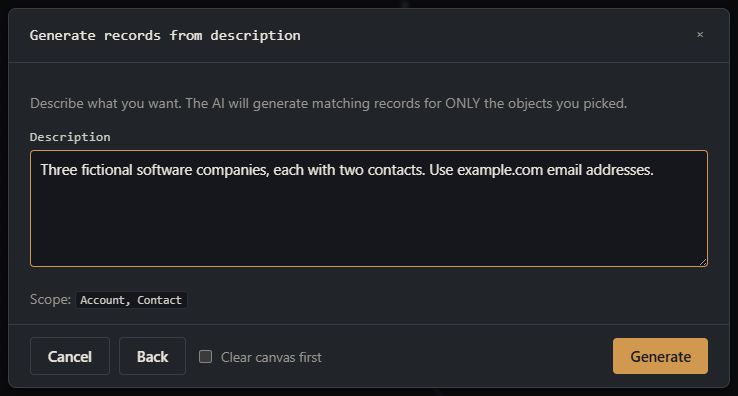
Step 2: Describe the dataset
Describe the number and kinds of records you need. Include useful constraints such as industry, region, status, value ranges, and how the records should relate to each other.
For example:
- “Five fictional software companies, each with two contacts and one open opportunity.”
- “Three healthcare accounts in Arizona with one billing contact each.”
- “Two retail accounts and four contacts divided between those accounts.”
Descriptions can contain up to 2,000 characters. Choose Clear canvas first only when the generated drafts should replace the current canvas instead of being added alongside it. This option clears canvas records and relationships, never Salesforce data.
Step 3: Generate and review the plan
Select Generate. The request may take several seconds while the AI reads the selected field definitions and prepares a plan. A temporary network interruption is retried once; if the request still fails, the modal explains the next step and leaves the canvas unchanged.
The review shows:
- The total number of proposed records, grouped by object.
- A preview of the first records and their proposed field values.
- The number of proposed relationships.
- Any adjustments Org Loom made when the AI proposed an unknown object, an unavailable field, an invalid picklist value, or an invalid relationship.
Nothing has been added to the canvas yet. Choose Regenerate to return to the description with the scope and text preserved, or close the modal to discard the proposal. A new generation uses additional AI allowance or credits.
Step 4: Apply the proposal to the canvas
Choose Apply N to canvas. Every accepted proposal becomes a new draft card, and valid relationships are drawn between the drafts. Existing canvas records are not edited. They remain in place unless you explicitly selected Clear canvas first.
Applying is all-or-nothing. If the proposal would exceed the 500-record canvas limit, nothing is added and the current canvas is not cleared. The review does not offer per-record rejection, so apply the plan and then edit or remove any drafts you do not want.
Step 5: Review the drafts and upload
Treat the generated records as a starting point. Open cards to check important values, complete any missing required fields, and confirm the proposed relationships. A plan can be structurally valid while still needing business-specific information.
When the canvas is ready, choose Upload to Salesforce and review the upload preview and validation messages. The AI does not receive an upload capability and cannot bypass this human confirmation.
What the AI can and cannot do
- It can propose new draft records for selected objects and relationships between those drafts.
- It cannot target an existing record by Salesforce Id, name, or any other value.
- It cannot update or delete records on the canvas or in Salesforce.
- It does not automatically receive Salesforce record values, existing canvas values, access tokens, billing information, or Activity History. Any record data you enter in the prompt is sent to Anthropic as part of that prompt.
- It cannot introduce an unselected object. Out-of-scope records are removed before review.
A plan can contain at most 100 records. The review may preview only the first portion of a larger plan; the Apply count shows the total number that will be added.
AI usage and Activity History
AI usage belongs to the active workspace. When the monthly allowance is exhausted, Org Loom uses available workspace AI credits or asks you to wait for the reset or contact an administrator. The error includes a link to review usage or plans when relevant.
Workspace Activity History records the action, time, user, and outcome. Use the Billing tab for workspace AI usage totals. Prompt text and generated field values are not stored in workspace Activity History. Closing the modal after a request has started does not remove usage already incurred.