Walkthrough
Ask a teammate to fill selected fields
Ask a Contributor to complete specific fields on a record while the rest of the shared canvas remains read-only. Their response stays on the canvas until its owner reviews and uploads it to Salesforce.
Before you begin
You will need:
- A Pro or Team workspace.
- A saved canvas that you own.
- A draft or existing Salesforce record on the canvas.
- A Salesforce user in the same org who can use the requested object and fields.
- In a Team workspace, the Share canvases permission from a workspace admin.
A field request does not expand Salesforce access. The recipient sees only the objects, fields, existing records, and relationships available to their own Salesforce user.
The process
- Share the canvas with a Contributor.
- Choose the fields you want completed.
- Assign the request to a teammate or any Contributor.
- The Contributor completes the request on the canvas.
- Review the response and upload when the canvas is ready.
Step 1: Share with a Contributor
Save the canvas, select Share, and choose the Salesforce user who should complete the request. Give them Contributor access. Contributors can complete work assigned to them without changing unrelated parts of the canvas.
If the canvas is already shared with the right person, you can move directly to the field request. Org Loom can also ask before changing a Viewer to Contributor when you assign the request.
Step 2: Choose the fields to complete
Open the record card's menu and choose Request fields on this record or Request fields on this draft. Select each field the Contributor should complete. Use the search box when the object has a long field list.
Only fields that can participate in the current request are available. Fields outside the request remain read-only for a Contributor.
Step 3: Add instructions and assign the request
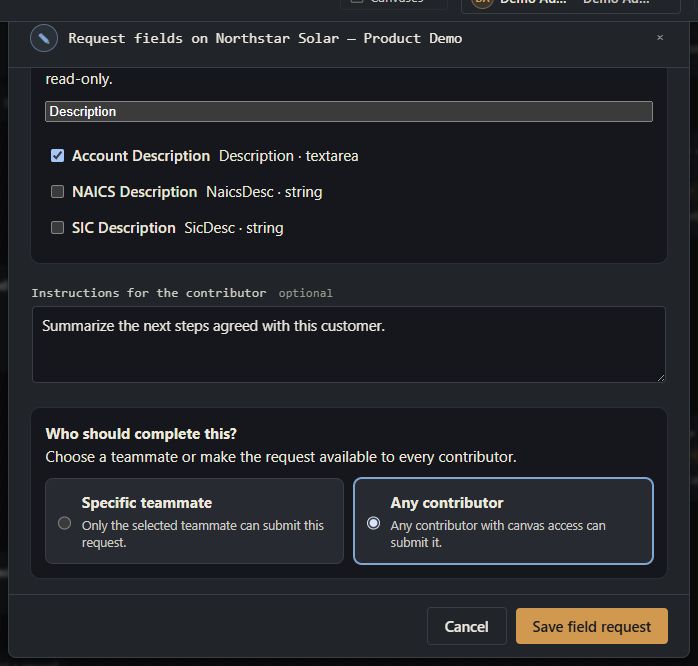
Add instructions when the teammate needs context beyond the field names. Then choose who should complete the request:
- Specific teammate limits the request to the person you select.
- Any contributor lets any person with Contributor or Editor access complete it.
Choose Save field request. The card identifies the number of requested fields and, for a specific assignment, the teammate responsible for them. Save the canvas to keep the updated request when the canvas is reopened later.
Step 4: The Contributor completes the request
The Contributor opens the shared canvas and uses the Your tasks panel to find work assigned to them. Selecting a field task opens the relevant record and moves to the next requested field that needs attention.
- Open the task.
- Enter values in the highlighted requested fields.
- Choose Save changes in the open record.
- Repeat for any remaining tasks.
The response appears on the owner's canvas and in other open, authorized sessions. It does not upload a Salesforce business record. Only the canvas owner can perform that upload.
Step 5: Review the response
The owner follows progress in the Requests panel. It groups field requests, shows their assignee, and keeps completed work available for review.
Open the record to review the submitted values. You can correct a value, reopen the request to change its fields or assignee, or remove the request when it is no longer needed.
When the full canvas is ready, the owner chooses Upload to Salesforce. The upload is validated using the owner's active Salesforce connection and permissions.
Need a teammate to add a record instead?
A field request asks for values on a record that is already on the canvas. To ask someone to create or choose an entire record, right-click an empty area of the canvas and choose Request record here. That request appears separately under Add records in the task panel.